Inpatient Admission, Bed Command Center & Ward Supply
This section provides an exhaustive, production-grade operational guide to the Bed Command Center, interactive ward maps, patient acuity color-coding, the Smart Bed Finder, inter-ward transfer protocols, nurse staffing allocations, the Corridor Bed Wallboard, and the Ward Supply & Consumables Replenishment Hub in MOANA EHR.
- Authorized Roles: Hospital Administrator, Nursing Supervisor / Charge Nurse, Ward Nurse, Attending Doctor, Admission & Discharge Coordinator, Environmental Services (Housekeeping).
- Module Identifier: Module 04 (Inpatient Admissions, Beds & Wards).
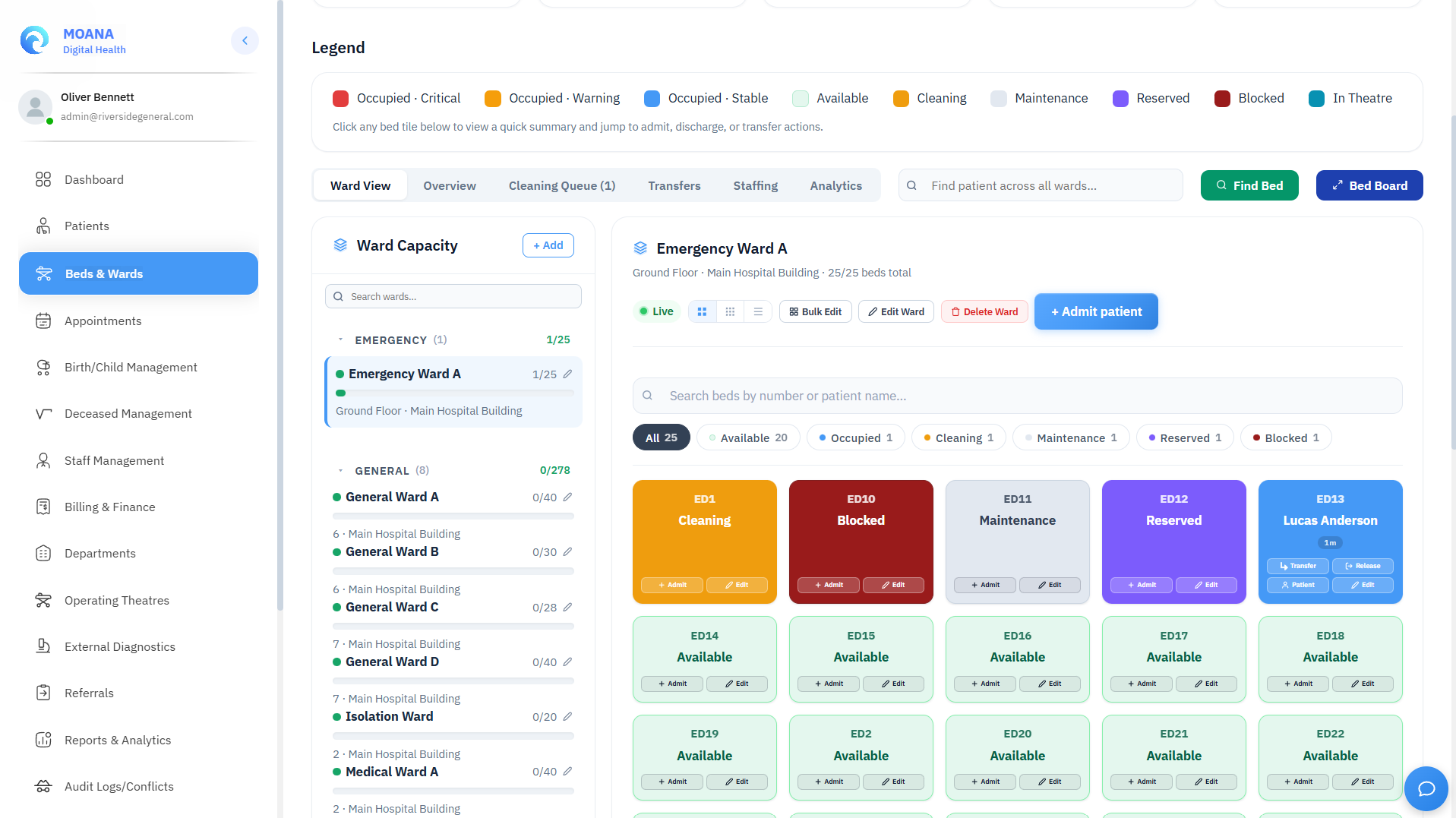
1. Module Overview & Census Command Bar
The Beds & Wards console serves as the hospital's inpatient nerve center, tracking live occupancy, patient clinical acuity, bed turnover intervals, medical gas infrastructure, and nurse staffing ratios across all clinical units (Emergency Holding, Male Medical, Female Surgical, Pediatrics, Maternity & Labor, Intensive Care Unit (ICU), High Dependency Unit (HDU), Isolation).
graph TD
    A[Inpatient Admission Order / Transfer Request] --> B[Bed Command Center & Ward Census Matrix]
    B --> C[1. Ward View: Interactive Bed Map Grid]
    B --> D[2. Hospital-Wide Overview Matrix]
    B --> E[3. Housekeeping & Terminal Cleaning Queue]
    B --> F[4. Ward Transfers Queue & Mutual Locking]
    B --> G[5. Nurse Staffing & Shift Coverage Panel]
    B --> H[6. Bed Occupancy & ALOS Analytics]
    B --> I[7. Ward Supply & Consumables Hub]
    B --> J[8. Corridor Bed Wallboard Mode]
Real-Time Census Metric Cards (Top Bar):
The top census bar provides real-time counts calculated dynamically across the entire facility:
| Metric Card | Visual Tone | Real-Time Calculation & Operational Meaning |
|---|---|---|
| Total Registered Beds | 🔵 Blue | Total operational bed capacity across all active inpatient wards. |
| Occupied Beds | 🔴 Red | Currently admitted inpatients actively occupying a bed slot. |
| Available Now | 🟢 Green | Clean, disinfected beds ready for immediate patient intake. |
| Cleaning Queue | 🟡 Yellow | Beds vacated post-discharge undergoing routine or terminal sanitization. |
| Maintenance / Offline | ⚫ Gray | Beds or room fixtures temporarily offline for mechanical, electrical, or medical gas repair. |
| Total Active Wards | 🏢 Slate | Count of active clinical wards currently operating within the facility. |
2. Top-Level Sub-Tab Navigation
The Beds & Wards module is organized into three primary operational domains:
- Ward Management (Default Tab):
- Live interactive bed tiles, ward grouping, Smart Bed Finder, Cleaning Queue, Transfers Queue, Staffing Panel, and Analytics.
- Ward Supply Tab:
- Ward-level medication and medical consumables inventory, safety par levels, automated low-stock warnings, and fast requisition dispatch to the central hospital warehouse.
- Morgue Bays Tab:
- Direct shortcut to mortuary bay management, tracking refrigeration unit status, deceased patient bay allocations, and mortuary release workflows.
3. Real-Time Synchronization & Offline Architecture
The Bed Command Center incorporates real-time WebSocket telemetry combined with robust offline resilience:
- Live WebSocket Telemetry (
Socket.IO):- When a nurse station opens a ward, the client joins a dedicated WebSocket room (
socket.emit('join-ward', { wardId })). - Real-time events (
bed:occupied,bed:released,bed:cleaning,bed:status_change) update bed tiles, patient names, and stay timers instantly across all clinical monitors without requiring manual page refreshes.
- When a nurse station opens a ward, the client joins a dedicated WebSocket room (
- Offline Fallback & Local Storage:
- If network connectivity is interrupted, the Bed Command Center falls back to locally-cached IndexedDB/localStorage data.
- Any offline bed state changes or nurse assignments queue locally and synchronize automatically once connectivity is restored.
4. Interactive Bed Map & Acuity Color Legend
Every bed in the facility is represented as an interactive visual tile displaying bed number, room assignment, patient name, admission duration, assigned primary nurse, and real-time clinical acuity.
Bed Status & Patient Acuity Color Legend:
| Status / Acuity Key | Swatch Indicator | System Definition | Clinical & Operational Meaning |
|---|---|---|---|
| Available | 🟢 Green Swatch | Clean, sanitized vacant bed. | Ready for immediate intake or reservation. |
| Occupied — Stable | 🔵 Blue Swatch | Admitted patient in stable condition. | MEWS < 3; standard ward nursing protocol. |
| Occupied — Warning | 🟡 Yellow / Amber | Patient showing early vital deterioration. | MEWS 3–4; requires increased vitals frequency. |
| Occupied — Critical | 🔴 Solid Red | High-acuity patient / clinical deterioration. | MEWS ≥ 5 or ICU high-dependency patient; alerts charge nurse. |
| Cleaning in Progress | 🟡 Gold Swatch | Post-discharge sanitization underway. | Housekeeping assigned; turn-around timer running. |
| Terminal Clean Required | 🟠 Orange Swatch | Isolation bed requiring biohazard protocol. | Locked until infection control nurse sign-off. |
| Maintenance | ⚫ Slate Gray | Broken frame, monitor, or gas outlet repair. | Bed offline; excluded from available census. |
| Reserved | 🟣 Purple Swatch | Held for incoming patient or surgery. | See sub-reasons below. |
| Blocked | ⬛ Dark Hashed | Blocked for clinical or administrative reasons. | Bed temporarily locked from allocations. |
| In Theatre | 🟦 Teal Swatch | Admitted patient currently in surgery (OT). | Bed held for post-operative return. |
Reserved Bed Reason Classifications:
When a bed is placed in Reserved status, the system tracks the specific operational justification:
in_theatre(In Theatre): Patient is actively inside the Operating Theatre; bed is reserved for post-anesthesia recovery return.theatre_hold(Reserved — Surgery): Held for a pre-scheduled surgical admission arriving today.post_op_reserve(Reserved — Post-Op): Held for an ICU/HDU patient stepping down post-surgery.transfer_incoming(Reserved — Transfer): Locked for an incoming patient transferring from Emergency or another ward.planned_admission(Reserved — Planned): Reserved for an elective direct admission booking.
5. Smart Bed Finder (Criteria Matcher)
The Smart Bed Finder is a rapid placement tool designed for emergency doctors, triage nurses, and admission coordinators to identify the ideal available bed in seconds based on patient clinical requirements.
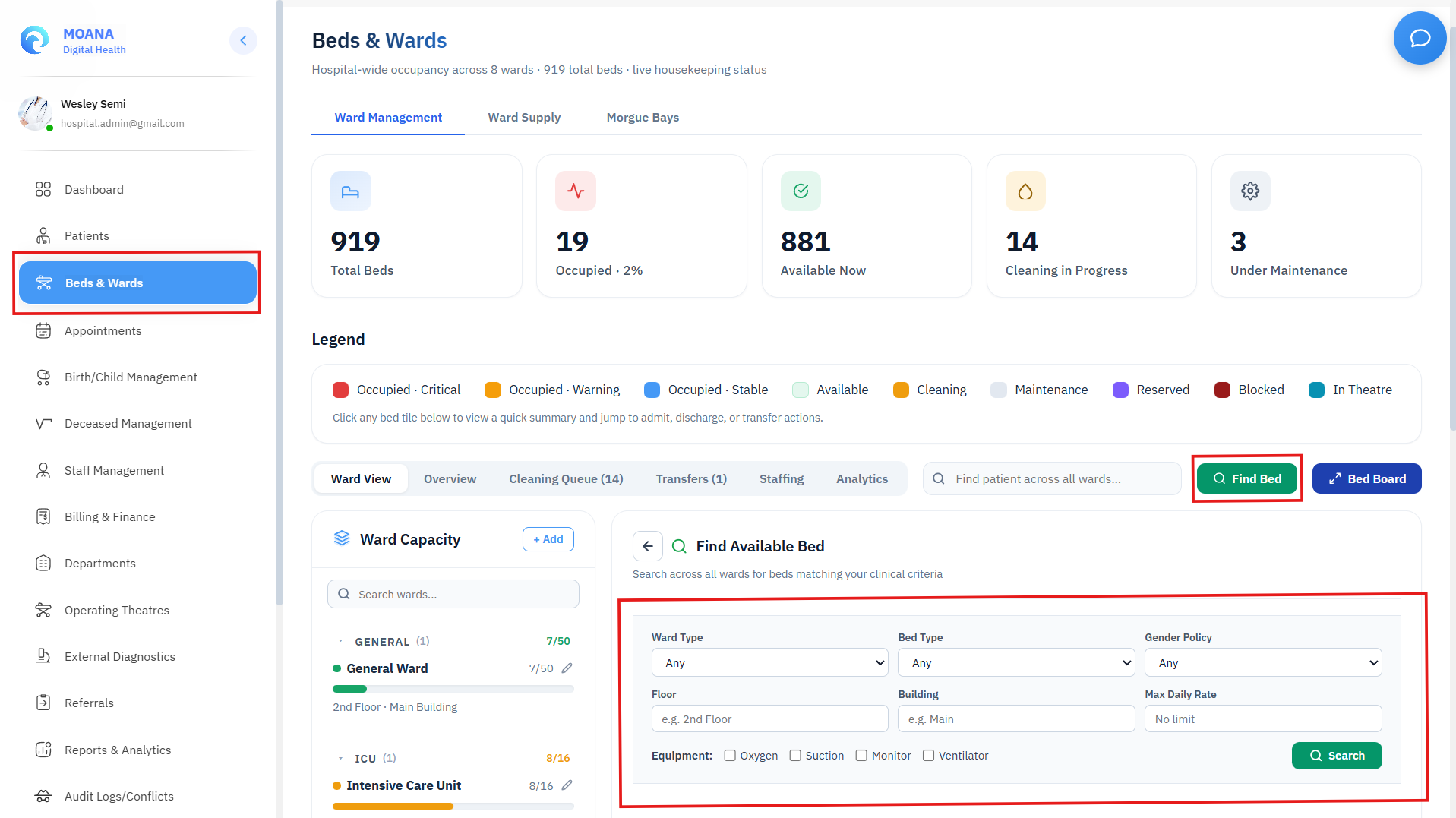
Matching Criteria & Infrastructure Filters:
- Clinical Ward Type: General Medical, Surgical, Pediatric, Maternity, ICU, HDU, Isolation, Emergency Holding.
- Bed Mechanical Type: Standard Ward Bed, High-Low Electric, Bariatric (Heavy Duty), Birthing Bed, Pediatric Crib, Alternating Air-Loss Bed.
- Medical Gas & Life Support Infrastructure:
- 🔵 Oxygen Port: Verified piped oxygen wall outlet or dedicated concentrator.
- 🟣 Medical Vacuum / Suction Port: Piped surgical/airway suction port.
- 🟢 Vital Signs Monitor: Dedicated multi-parameter bedside physiological monitor.
- 🔴 Mechanical Ventilator Capable: High-pressure gas and electrical infrastructure for ICU ventilators.
- 🔔 Emergency Nurse Call Bell: Operational bedside call button system.
- ⚡ Motorized Tilt / Trendelenburg: Motorized positioning for hemodynamic management.
- Gender & Cohorting Policy: Compliance with ward gender rules (Mixed, Male Only, Female Only, Pediatric Accompanied).
- Physical Location: Preferred building, wing, or floor level.
- Financial Cap: Maximum daily room rate threshold to match patient insurance or budget.
Clicking Find Beds presents an instant list of matching available beds with real-time room numbers, amenities, and direct Reserve or Admit buttons.
6. The 6 Dedicated Command Sub-Views
Clinical supervisors and ward sisters can switch between 6 specialized views in the Bed Command Center:
View 1: Ward View (Interactive Bed Grid)
- Displays visual room clusters with physical floor coordinates (e.g., Ward 3A · Room 12 · 2nd Floor).
- 3 Dynamic Viewing Layouts:
- Grid Mode (Default): Rich visual cards displaying patient avatar, bed #, room #, live stay timer (e.g.,
3d 14h), MEWS clinical acuity tone, and assigned primary nurse badge. - Compact Mode: Dense visual matrix designed for intensive wards with 50+ beds.
- List Mode: Tabular view with sortable columns (
Bed #,Status,Patient,Bed Type,Room #,Admitted At,Duration,Daily Rate,Assigned Nurse).
- Grid Mode (Default): Rich visual cards displaying patient avatar, bed #, room #, live stay timer (e.g.,
- Pagination & Search: Configurable page size (25, 50, 100 beds) with instant real-time filtering by patient name, bed number, or MRN.
- Bulk Operations Mode: Click
Bulk Modeto multi-select beds or define a range (e.g., Bed A-101 to A-115) to execute mass status changes (Mark Cleaning, Mark Maintenance) or update daily room tariffs across an entire bay.
View 2: Hospital-Wide Overview Matrix
- High-density executive table showing total capacity, occupied count, available count, and percentage occupancy (% Occupied) with color-coded tone indicators (🟢
<40%, 🟡40–79%, 🔴≥80%) broken down by departmental ward. - Includes global hospital patient search to locate any admitted inpatient across all wards instantly.
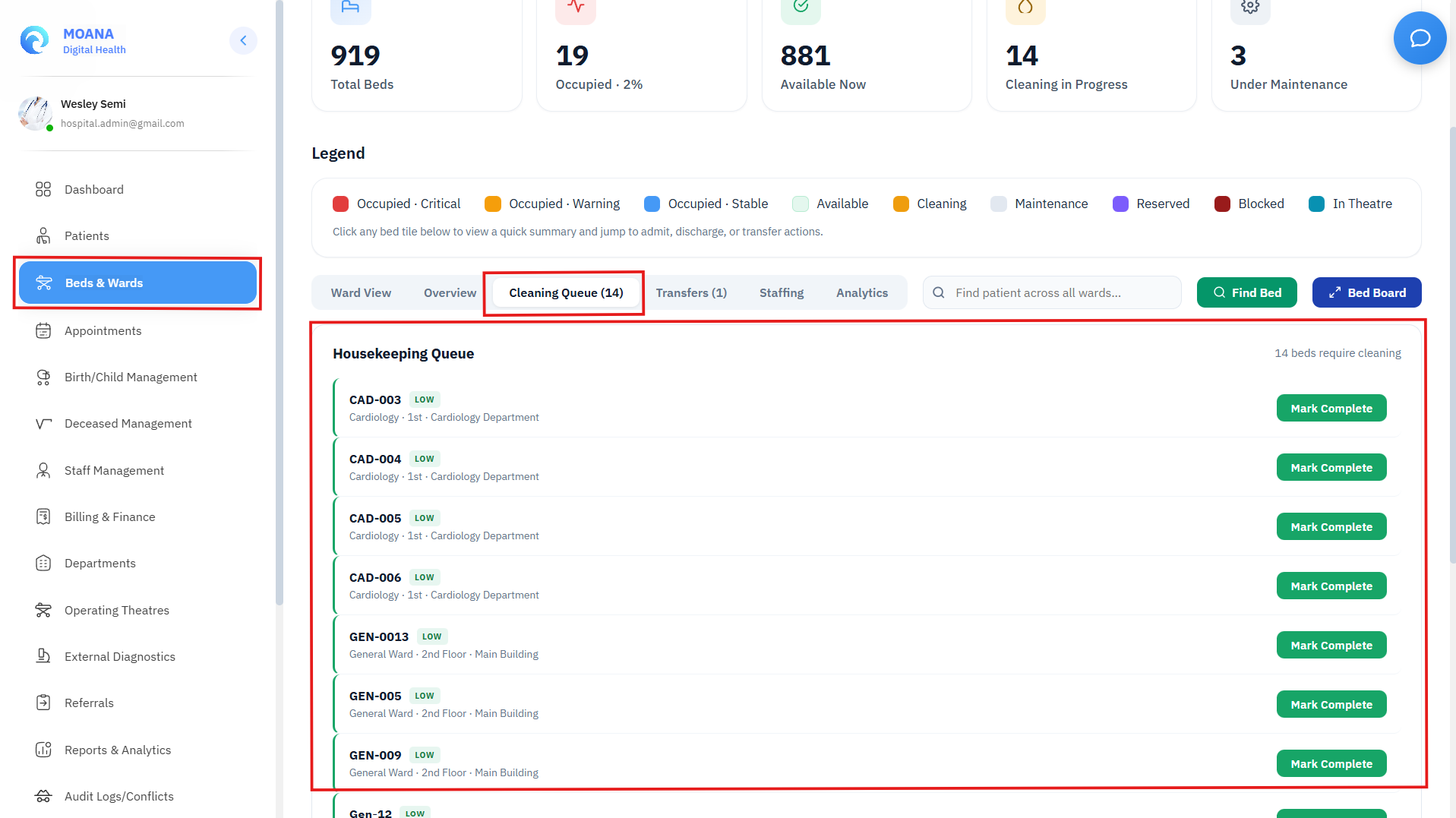
View 3: Cleaning & Housekeeping Queue
- Real-time triage queue for hospital environmental services and housekeeping teams.
- Displays timestamp of patient departure, turn-around stopwatch timer, assigned cleaner, and cleaning priority.
- Terminal Disinfection Gate: For beds vacated by patients flagged with contact/airborne isolation precautions (e.g., Tuberculosis, MRSA, COVID-19, C. difficile), the bed is locked from new admissions until an authorized clinical nurse completes the terminal disinfection checklist and signs off.
- One-click
Mark Clean & Availableimmediately returns the bed to the live admission pool.
View 4: Ward Transfers Queue & Mutual Locking Protocol
- Manages inter-ward patient transfer requests (e.g., Emergency Holding ➔ Intensive Care Unit).
- Mutual Resource Locking: While a transfer request is pending, both the patient's current bed and the destination bed are locked against concurrent modifications to prevent allocation collisions.
- Displays transfer priority (Routine vs. STAT Urgent), clinical justification, and transfer checklist.
- Authorized charge nurses click
Approve Transfer(which transfers the patient, marks the source bed asCleaning, and updates the destination bed toOccupied) orReject Requestwith documentation.
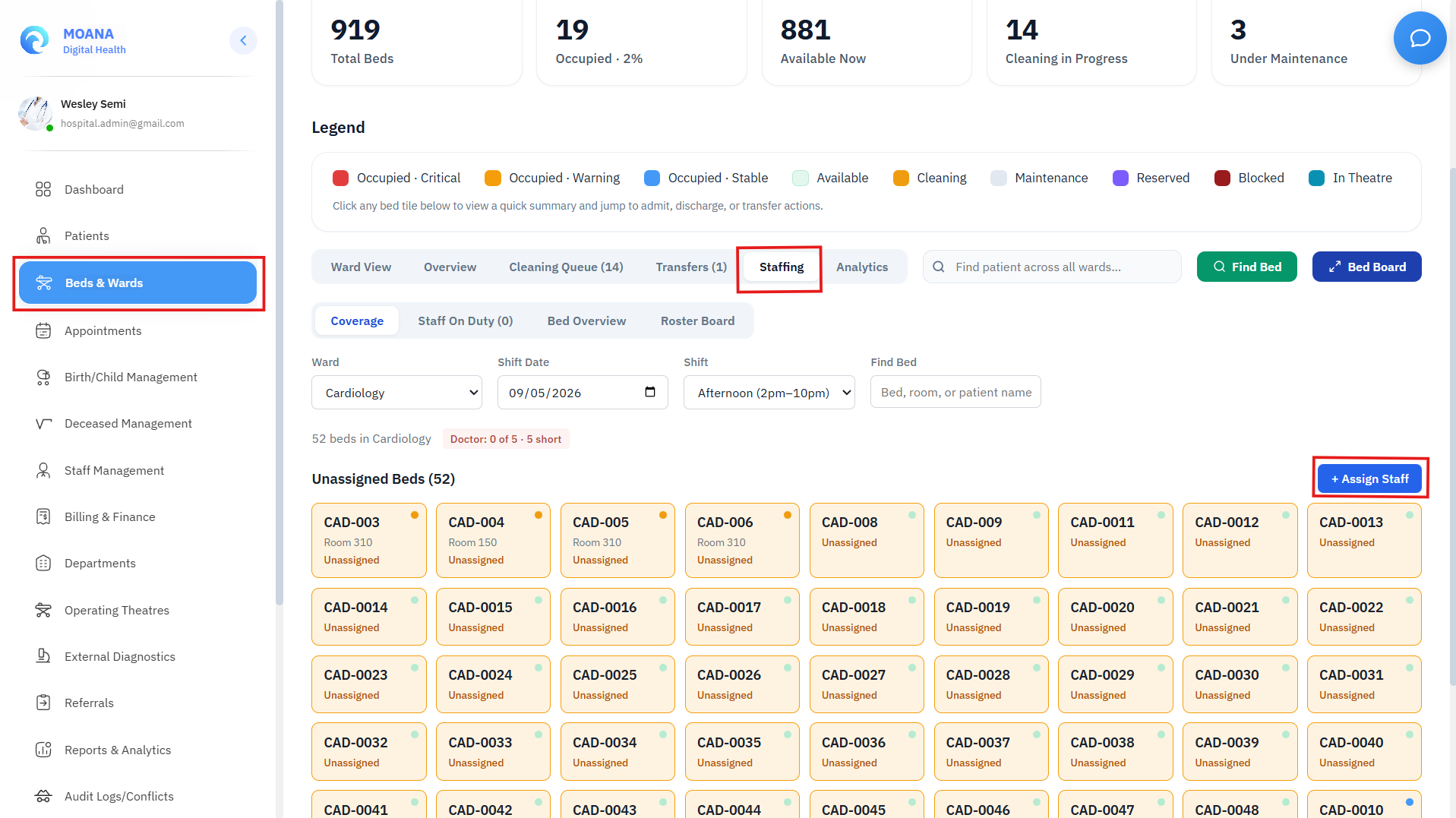
View 5: Nurse Staffing & Shift Coverage Panel
- Tracks live nurse-to-patient staffing ratios across all shifts (Morning 07:00–15:00, Evening 15:00–23:00, Night 23:00–07:00).
- Visual ratio compliance indicators (e.g., ICU Benchmark 1:1 or 1:2, General Ward Benchmark 1:5 or 1:6).
- Charge nurses click
Assign Staffto assign primary nurses and attending doctors to specific bed ranges. - Bed tiles instantly reflect the assigned nurse, and eMAR due doses and vital alerts route directly to that nurse's workstation.
View 6: Ward Analytics & Turnaround KPIs
- Real-time graphical analytics filterable by 7-day, 30-day, and 90-day periods.
- Key Performance Indicators:
- Bed Occupancy Rate (%) Trends: Day-by-day utilization curves.
- Average Length of Stay (ALOS): Mean hospitalization duration per ward.
- Bed Turnover Interval: Time elapsed from patient departure to next patient admission.
- Housekeeping Turnaround Time: Average minutes from bed vacation to clean sign-off.
- Discharge Peak Hours: Temporal distribution of patient departures to optimize discharge lounge staffing.
7. Interactive Bed Summary Drawer & Instant Actions
Clicking any bed tile in the Bed Command Center opens the Quick Bed Summary Modal:
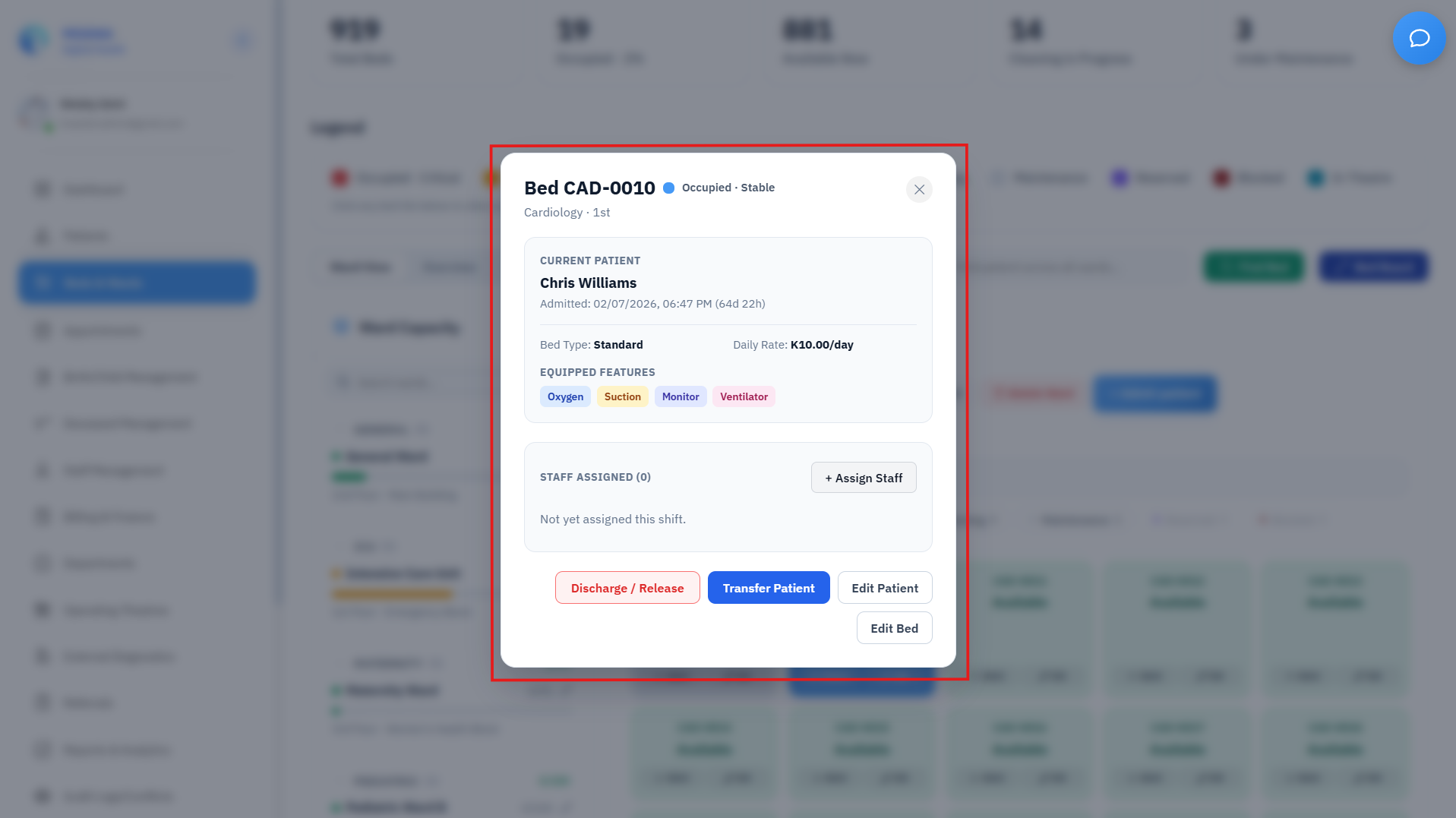
Information Displayed:
- Bed Identification: Bed Number, Room Number, Ward Name, Floor, and Building coordinates.
- Admitted Patient Dossier (if Occupied): Full Name, Patient ID/MRN, Encounter Type (
IPD), Admission Timestamp, and formatted live stay duration (e.g.,4d 18h). - Clinical Acuity Badge: Stable, Warning (MEWS 3-4), or Critical (MEWS ≥ 5).
- Active Care Team: Assigned Floor Nurse and Attending Physician.
- Equipment Specifications: Oxygen port, suction, monitor, and ventilator capability.
Context-Aware Action Palette:
| Bed State | Available Action Buttons | Action Description |
|---|---|---|
| Available | + Admit Patient | Opens patient intake modal with target bed pre-selected. |
Reserve Bed | Locks bed with expected arrival time and clinical reason. | |
Mark Maintenance | Places bed offline for engineering or biomedical repair. | |
Edit Bed | Edit bed number, room, daily tariff, or equipment amenities. | |
| Occupied | Transfer Patient | Launches the comprehensive Patient Transfer Modal. |
Release Bed (Discharge) | Initiates bed clearance, billing closure, and marks bed as Cleaning. | |
Force Release Bed | Administrative override with safety confirmation to clear stuck ghost allocations. | |
Edit Patient | Quick jump to patient demographics and medical chart. | |
Assign / Change Staff | Update primary nurse or attending doctor coverage. | |
| Cleaning | Mark Cleaned / Ready | Confirms standard sanitization and returns bed to Available. |
Terminal Sign-off | Infection-control nurse sign-off for biohazard isolation rooms. | |
| Maintenance | Complete Repair | Verifies repair completion and returns bed to Available. |
8. Post-Admission Care Setup Wizard
Immediately following a new inpatient admission or transfer, MOANA presents the Admission Care Setup Wizard:
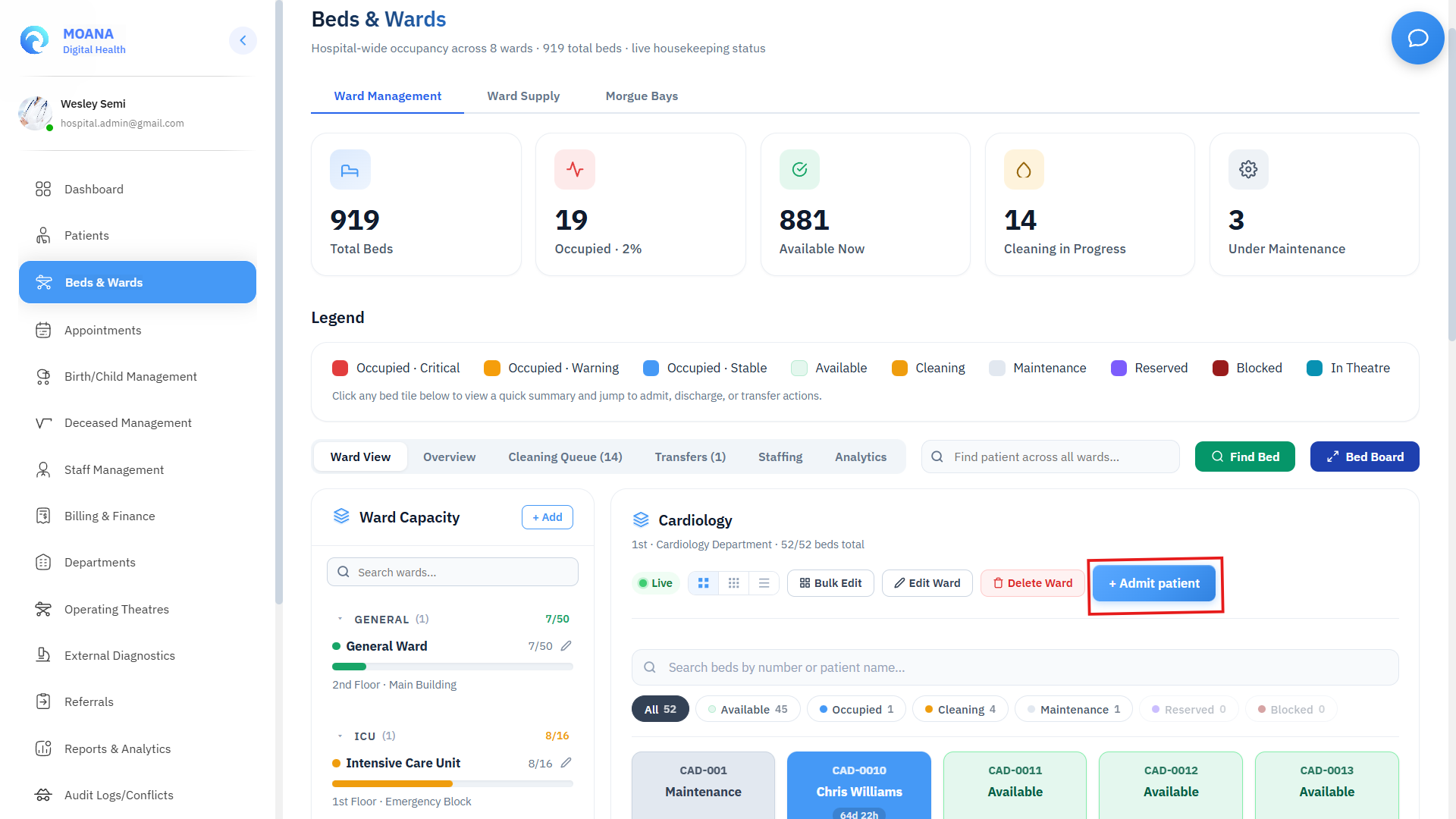
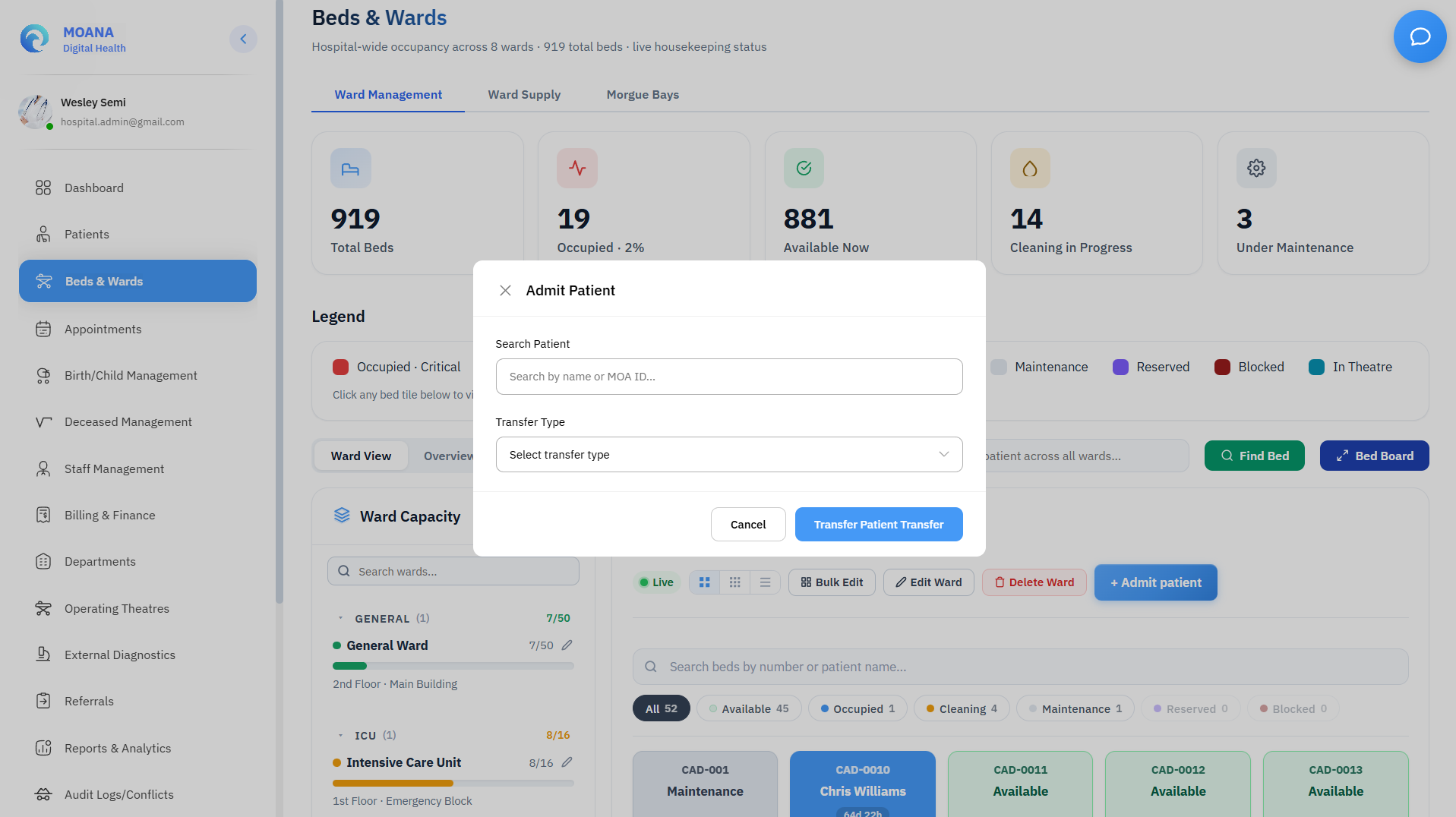
Setup Configuration Steps:
- Care Team Assignment:
- Assign Primary Attending Doctor and Primary Floor Nurse for the current shift.
- Inpatient Care Plan Assignment:
- Select standardized clinical pathway (General Inpatient, Post-Op Surgical, Pediatric Monitoring, Critical Care ICU, Maternity & Postpartum).
- Initial Vitals Monitoring Schedule:
- Select automated measurement frequency:
q1h(Hourly),q2h(Every 2 hours),q4h(Every 4 hours),q8h(Standard Ward Routine), orSTAT MEWS.
- Select automated measurement frequency:
- Inpatient Dietary Order:
- Prescribe clinical diet:
NPO (Nil Per Os),Clear Liquid,Full Liquid,Diabetic / Low Glycemic,Renal / Low Potassium,Low Sodium / Cardiac, orStandard Diet.
- Prescribe clinical diet:
- Safety & Risk Flags:
- Mandatory confirmation of Fall Risk assessment, Allergy wristband check, and Isolation Precautions.
9. Inter-Ward Patient Transfer Workflow
When a patient's clinical condition changes (e.g., deteriorating in General Ward requiring ICU escalation, or improving in ICU stepping down to General Ward), clinical staff execute the Patient Transfer Workflow:
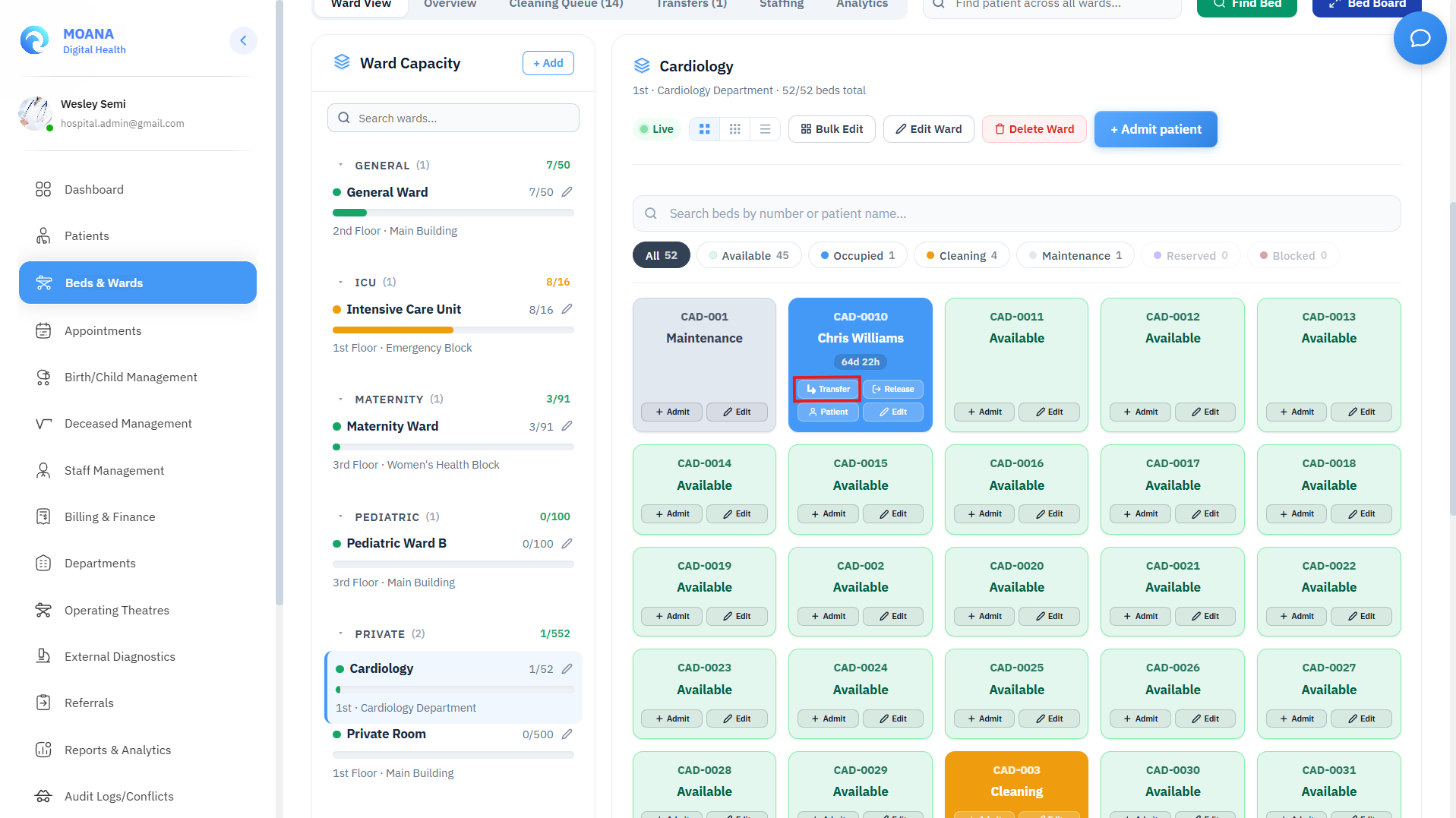
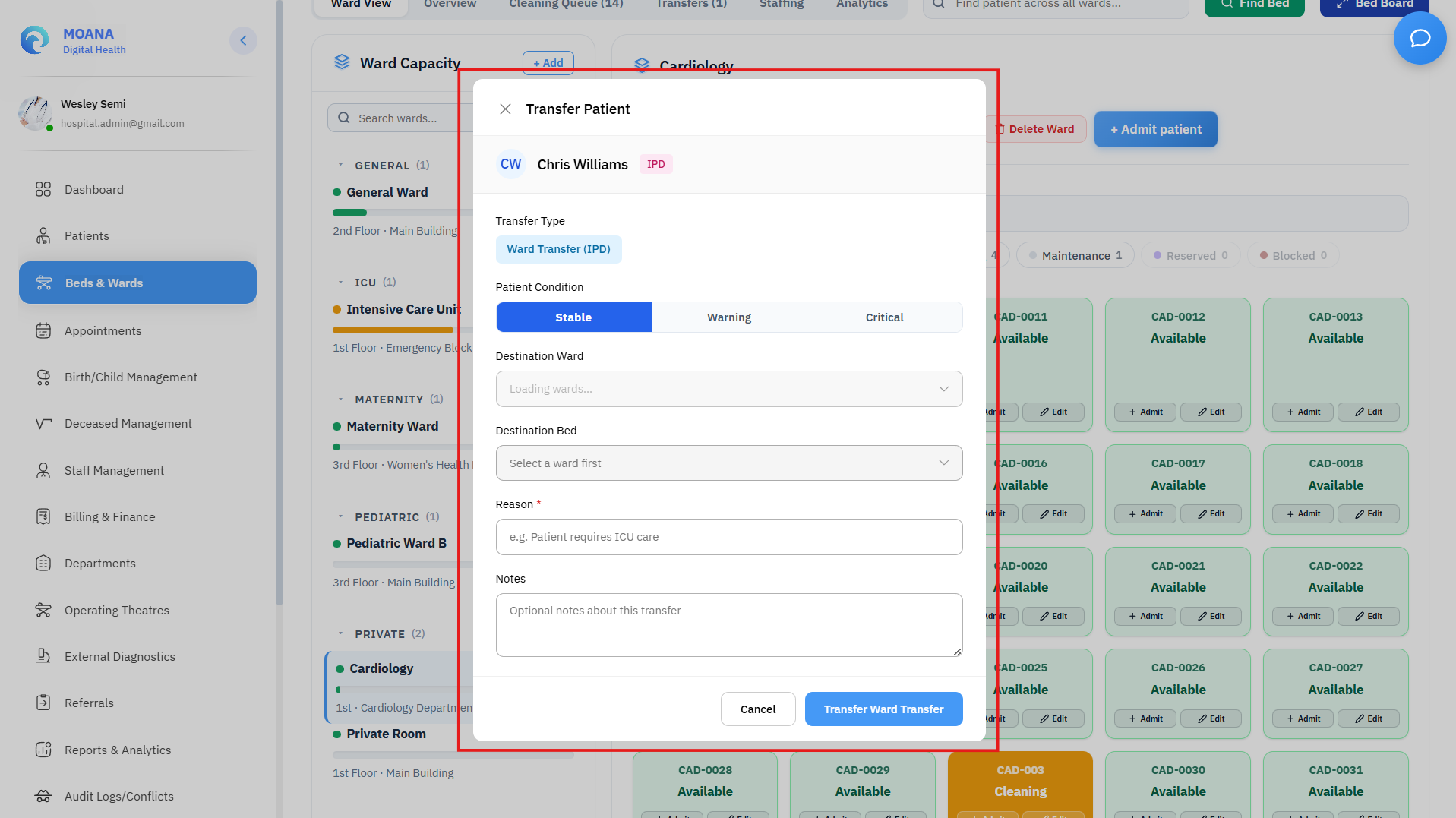
Transfer Execution Steps:
- Open the patient's Bed Summary Drawer and click
Transfer Patient. - Target Destination: Select destination Ward and Bed from the live availability picker.
- Clinical Transfer Justification:
- Select reason: Escalation to Intensive Care (ICU/HDU), Step-Down to General Ward, Post-Operative Surgical Recovery, Infection Isolation Placement, Specialist Departmental Transfer, Patient / Family Preference.
- Pre-Transfer Handover Checklist:
- Medical Escort Required: Designate Registered Nurse Escort, Critical Care Physician, or Hospital Porter.
- Oxygen Transport Cylinder: Verify portable oxygen supply is active and full.
- Continuous IV Infusions: Confirm infusion pumps and active IV lines are secured for transit.
- Telemetry Handover: Verify cardiac telemetry transfer protocol.
- SBAR Handover Documentation:
- S (Situation): Current clinical summary and transfer urgency.
- B (Background): Primary admission diagnosis, surgical history, and allergies.
- A (Assessment): Latest MEWS score, current vital signs, and active infusions.
- R (Recommendation): Target ward monitoring plan and pending diagnostic orders.
- Click
Execute Transfer:- Patient chart moves instantly to the destination ward bed.
- Destination bed status switches to
Occupied. - Origin bed status switches automatically to
Cleaning. - Active eMAR medications and clinical tasks transfer seamlessly to the receiving ward nursing team.
10. Corridor Bed Wallboard Mode
The Bed Command Center includes a dedicated Corridor Bed Wallboard Mode designed for large corridor wall screens, nursing station overhead displays, and hospital operations centers:
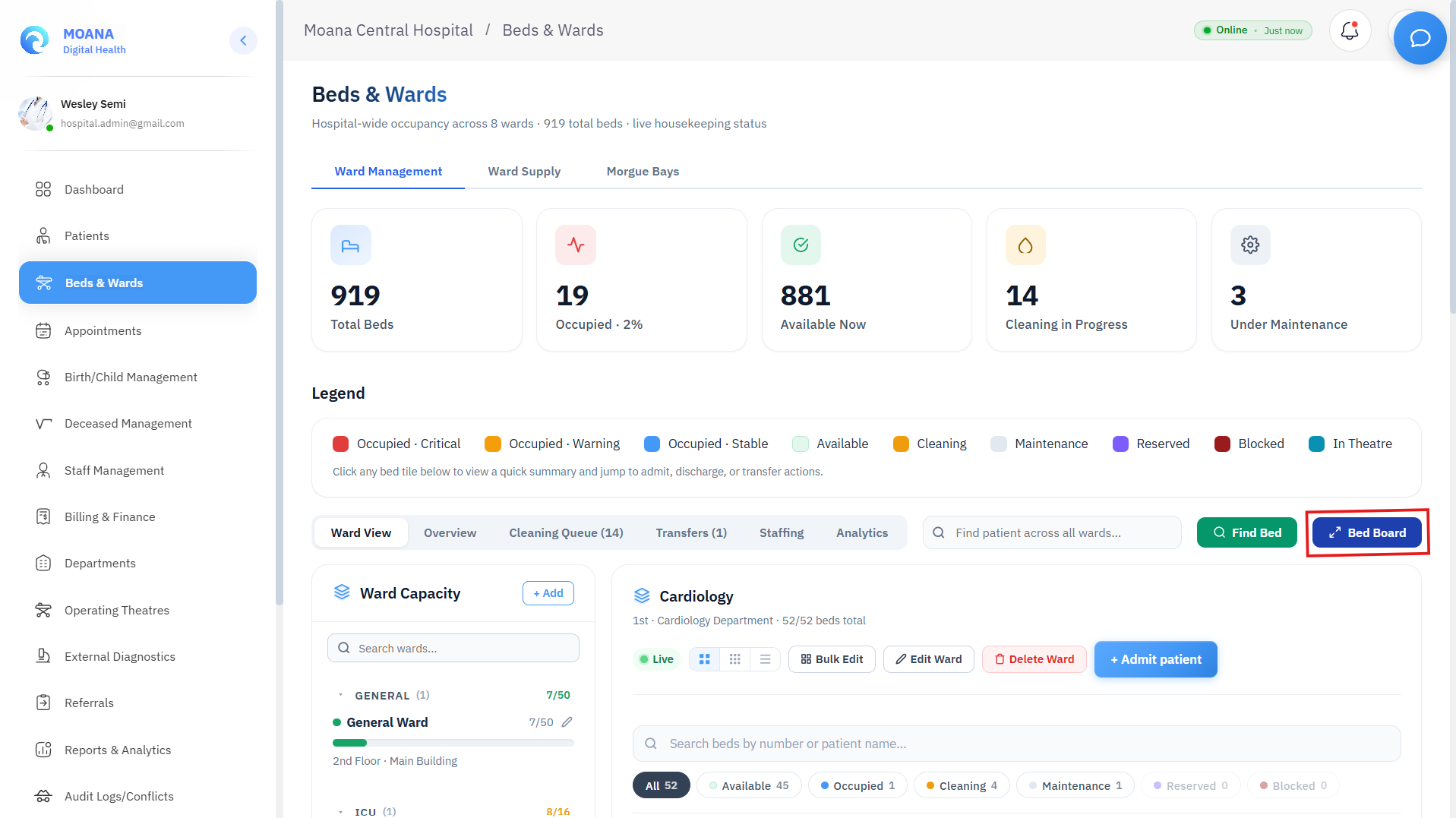
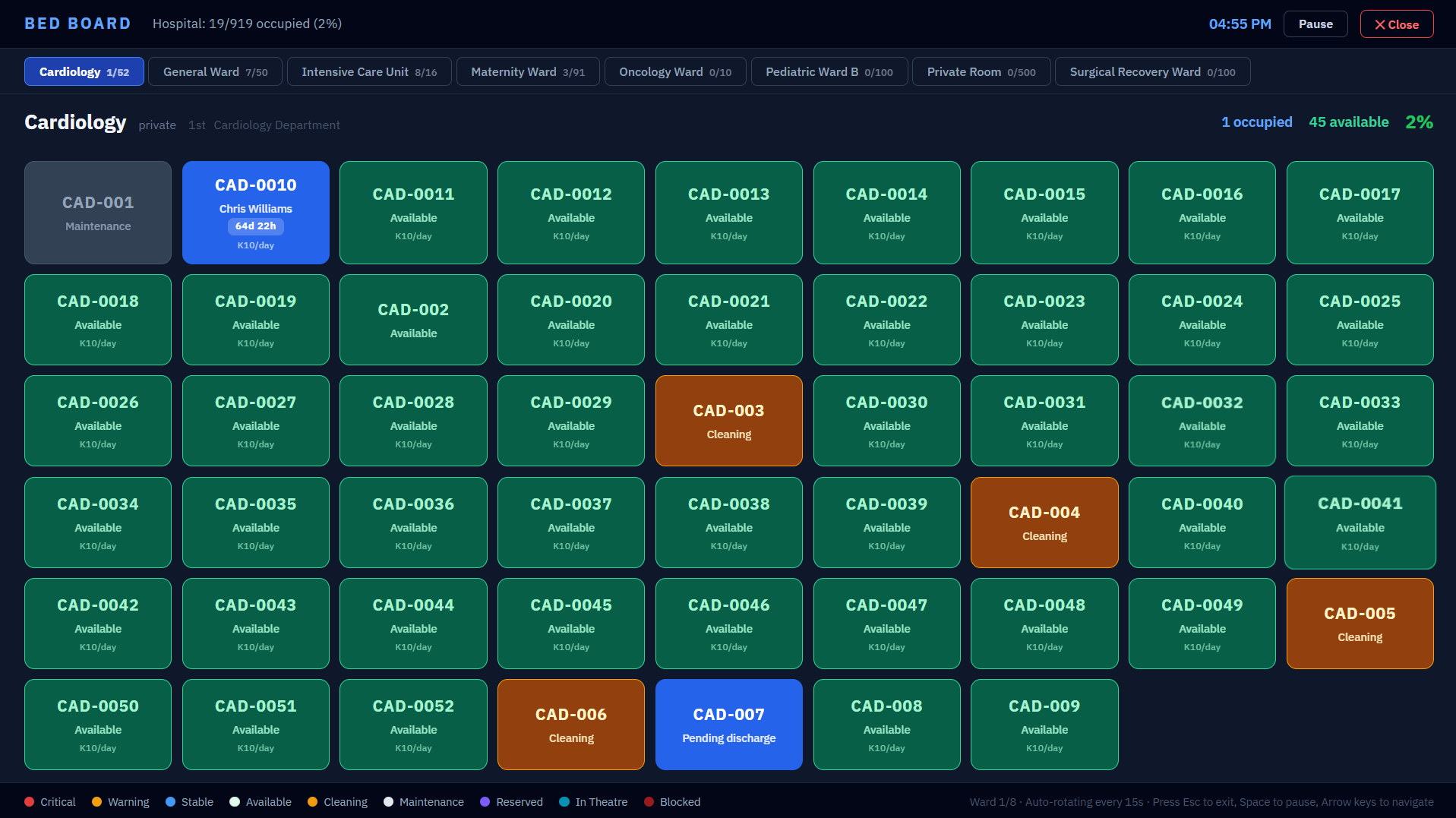
Wallboard Features:
- Fullscreen Dark-Theme Presentation: High-contrast visual cards legible from a distance of 10+ meters.
- Auto-Rotation Engine: Automatically cycles through all hospital wards at configurable intervals (e.g., 15-second rotation across Emergency Holding, ICU, Ward 1A, Ward 2B).
- Live Acuity Color-Coding: Instant visibility of critical patients (Red), warning patients (Yellow), stable patients (Blue), and empty beds (Green).
- On-Duty Care Coverage: Displays the assigned nurse covering each bed directly on the wallboard tile.
11. Ward Supply & Medical Consumables Hub
The Ward Supply Tab provides localized inventory governance for ward-level medications, sterile sets, and medical consumables:
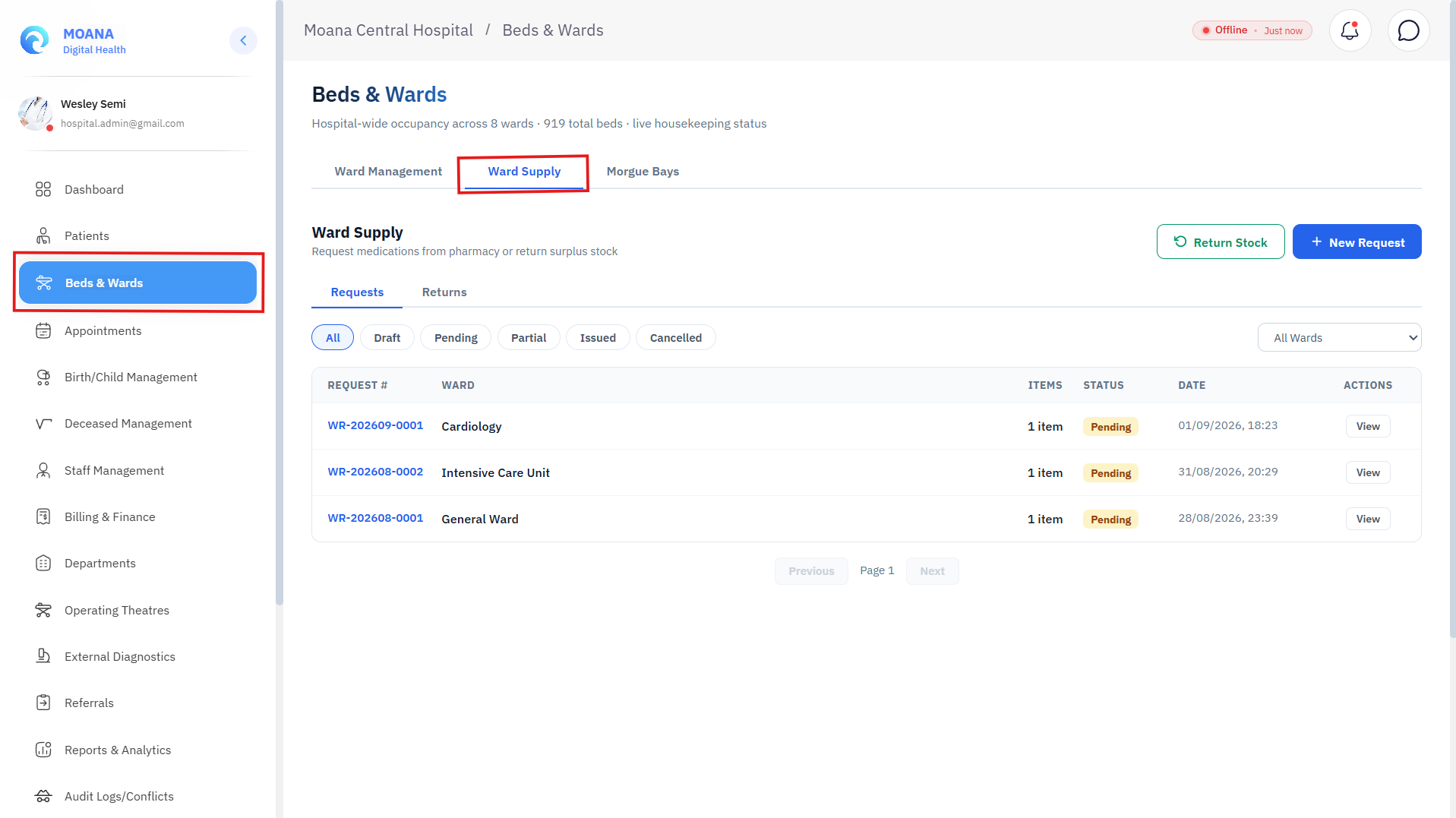
Core Supply Management Capabilities:
- Ward Par Level Monitoring: Real-time stock tracking for high-velocity consumables (IV Normal Saline 500ml, Ringers Lactate, Cannulas 18G/20G/22G, Syringes, Sterile Gauze Trays, Oxygen Cylinders, PPE Kits).
- Dynamic Low-Stock Triggers: Consumables falling below minimum safety par levels turn amber/red with automated reorder indicators.
- Internal Warehouse Requisition: Click
Request Restockto generate an automated stock requisition dispatch to the central pharmacy or central hospital store. - Urgency Flagging: Flag critical supply requests as
STAT Urgentfor immediate runner delivery during clinical emergencies. - Lot & Expiration Tracking: Proactively flags batches approaching expiration within 30 days.
12. Administrative Ward & Bed Configuration
Hospital Administrators and Operations Managers configure physical wards, rooms, and beds via the Ward & Bed Administration Console
Ward Setup:
- Ward Name & Code: Official unit designation (e.g., Ward 3B — Female Surgical).
- Building & Floor Coordinates: Physical location mapping (e.g., East Wing · 3rd Floor).
- Department Association: Links ward to clinical specialty (General Surgery, Pediatrics, Internal Medicine).
- Gender & Cohorting Policy: Strict enforcement rules (Mixed Gender, Male Only, Female Only, Pediatric Accompanied).
- Total Operational Capacity: Maximum physical bed slots allowed in the ward.
Bed Setup:
- Bed & Room Numbering: Individual bed number and parent room identifier.
- Bed Classification Type: Standard Inpatient, ICU, HDU, Pediatric Crib, Isolation, Birthing Bed, Bariatric.
- Financial Tariffs: Daily Room Rate and Daily Nursing Service Tariff (customized to facility currency).
- Medical Infrastructure Checkboxes: Oxygen Wall Outlet, Medical Suction Vacuum, Vital Signs Monitor, Ventilator Infrastructure, Nurse Call Bell, Motorized Bed Frame.
- Bulk Bed Generator: Tool to generate sequences of beds (e.g., Beds B-201 to B-220) with automated room assignment, tariffs, and amenity templates in a single click.
13. Pre-Admission Validation Gates & Safety Safeguards
To prevent clinical errors and allocation collisions, MOANA enforces three mandatory validation checks before any patient is admitted to a bed:
graph TD
    A[Click 'Admit Patient' on Bed Tile] --> B{1. Single Active Admission Check}
    B -->|Active Inpatient Found| C[Admission Blocked: Patient Already Admitted in Ward X]
    B -->|Passed| D{2. Bed State Check: Status == 'Available'?}
    D -->|Bed Occupied / Cleaning / Maintenance| E[Admission Blocked: Bed Unavailable]
    D -->|Passed| F{3. Ward Isolation & Gender Check}
    F -->|Mismatch Detected| G[Warning: Requires Clinical Supervisor Override]
    F -->|Passed| H[Admission Committed -> Bed Switches to 'Occupied']
    H --> I[Trigger Post-Admission Care Setup Wizard]
- Single Active Admission Rule: Prevents duplicate inpatient charts by verifying the patient does not hold an open active inpatient admission in any ward.
- Bed Availability & Sanitization Gate: Confirms the target bed is in verified
Availablestatus. - Automated Clinical Initiation:
- Automatically closes the previous OPD or Emergency Holding triage encounter.
- Generates a mandatory Daily Inpatient Ward Round Task for the attending physician.
- Populates the patient chart on the ward's active electronic Medication Administration Record (eMAR).