Billing, Invoicing & Financial Operations
This section provides an exhaustive guide to the Billing & Finance module in MOANA EHR, covering all seven financial management consoles: Invoices & Revenue Cycle, + New Invoice Creation, Advance Deposits, Charge Accounts, Credit Notes, Bad-Debt Write-Offs, Installment Payment Plans, and the Master Hospital Fee Schedule.
1. Module Overview & Financial Architecture
The Billing & Finance module centralizes all outpatient, emergency, and inpatient revenue streams into an auditable, multi-payer financial engine.
graph TD
    A[Clinical Services & Daily Bed Charges] --> B[Charge Accounts & Direct Postings]
    C[Advance Deposits Ledger] --> D[Consolidated Invoice Generation]
    B --> D
    E[Master Fee Schedule] --> D
    D --> F{Settlement Route}
    F -->|Immediate Full/Partial| G[Record Payment: Cash, Card, Mobile, Cheque]
    F -->|Insurance Adjudication| H[Claim Tracking: Pending / Approved / Rejected]
    F -->|Installment Agreement| I[Installment Payment Plan]
    F -->|Billing Dispute / Error| J[Credit Note]
    F -->|Uncollectable / Indigent| K[Supervisor Write-Off]
The 7 Core Navigation Tabs:
| Tab Name | Purpose & Workflow | Core Functionality |
|---|---|---|
| 1. Invoices | Main Invoices Console | Central billing dashboard, revenue KPIs, AR aging analysis, status filtering, payment recording, and official tax invoice printing. |
| 2. Advance Deposits | Advance Deposits Ledger | Upfront deposits for elective surgeries and admissions; automatically offsets final discharge bills. |
| 3. Charge Accounts | Direct Charge Capture | Point-of-service charge capture for consultations, lab tests, imaging, and procedural supplies. |
| 4. Credit Notes | Credit Notes Register | Formal invoice adjustments, error corrections, and courtesy discounts with mandatory justification. |
| 5. Write-Offs | Bad-Debt & Charity Console | Bad-debt and charity care accounting requiring Finance Supervisor PIN authorization. |
| 6. Payment Plans | Installment Plans Console | Structured installment contracts for high inpatient balances with scheduled payment tracking. |
| 7. Fee Schedule | Master Hospital Tariffs | Master hospital price catalog and standard tariffs across all 10 clinical service categories. |
2. Invoices Console & Revenue Tracking
The Invoices tab is the primary operational dashboard for hospital cashiers, billing officers, and finance directors.
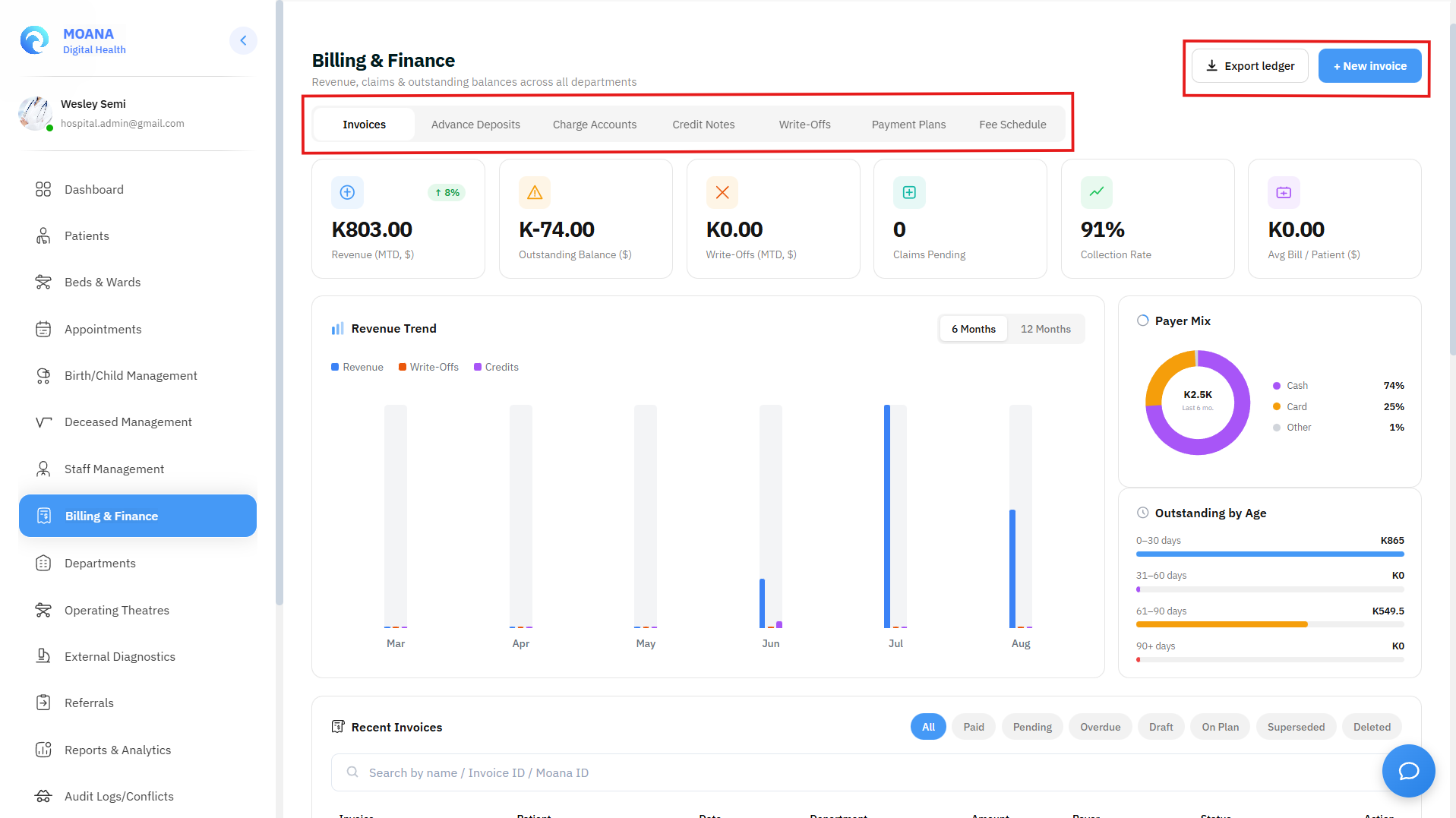
Key Capabilities:
- Executive KPI Stat Cards:
- Revenue (MTD): Total collections in the current month with period-over-period trend percentage.
- Outstanding Balance: Total uncollected receivables across all pending and overdue accounts.
- Write-Offs (MTD): Total bad-debt and indigent care write-offs approved in the month.
- Claims Pending: Count and volume of insurance claims awaiting third-party adjudication.
- Interactive Revenue Trend & Accounts Receivable (AR) Aging:
- Revenue Trend: 6-month or 12-month bar chart breakdown of monthly collections.
- Aging Buckets: Visual distribution of outstanding debt across 0–30 days, 31–60 days, 61–90 days, and 90+ days.
- Status Filter Pills: Quick filtering by
All,Paid,Pending,Overdue,Draft,On Plan,Superseded, andDeleted. - Row Actions:
- View: Opens the printable, itemized Tax Invoice modal.
- Edit: Allows modification of unpaid/draft invoice line items.
- Pay Invoice: Launches the payment recording modal with automatic deposit reconciliation.
- Approve / Reject Claim: Direct adjudication controls for insurance billing officers.
3. Creating a New Invoice (+ New Invoice)
Clicking the + New invoice button opens the comprehensive multi-section invoice generator modal.
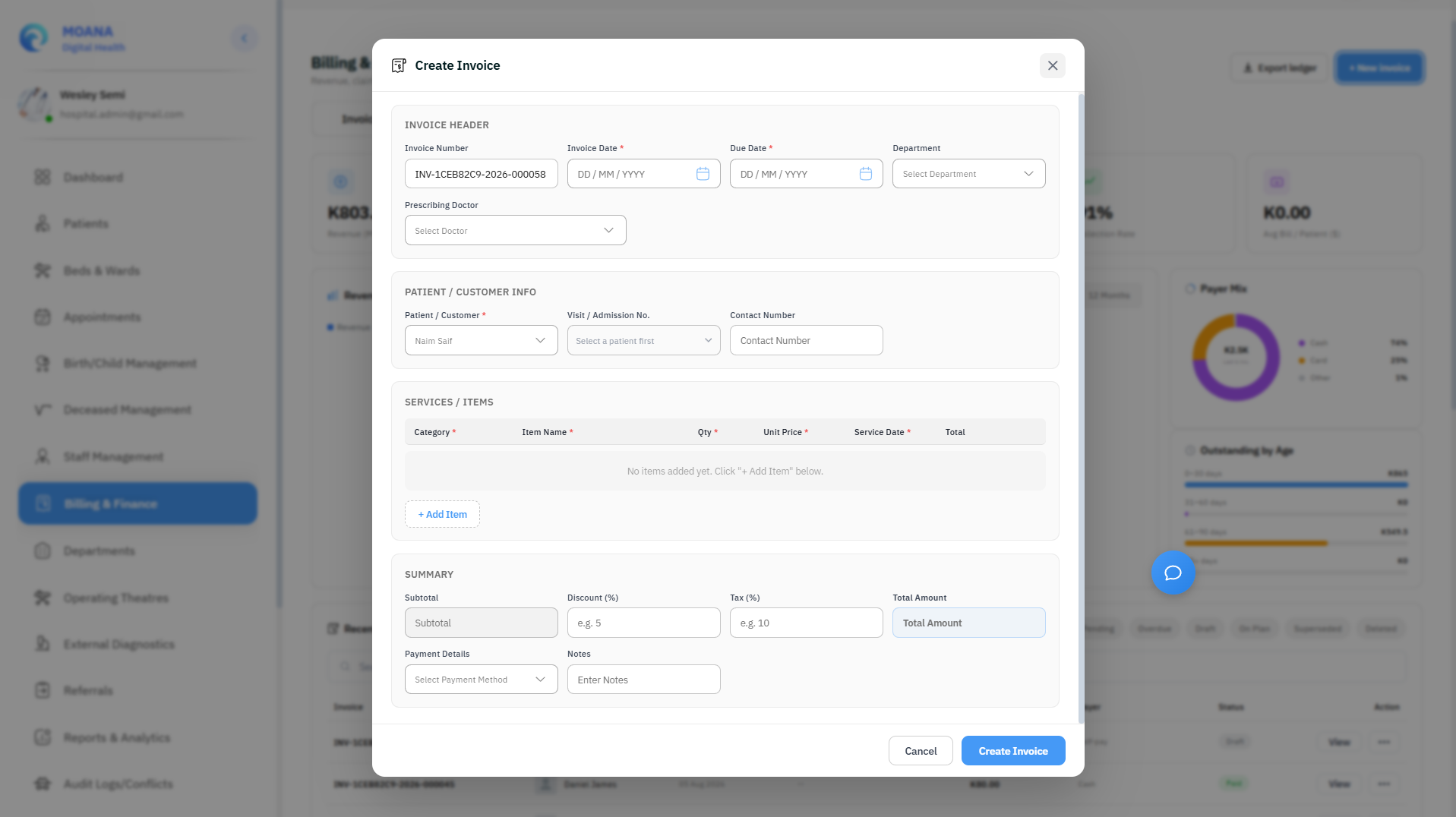
Step-by-Step Invoicing Workflow:
Step 1Configure Invoice Header
Specify the Invoice Number (auto-generated or manual), mandatory Invoice Date, Due Date, Department (Emergency, Outpatient, Internal Medicine, Surgery, Pediatrics, ICU, etc.), and the Prescribing Doctor.
Step 2Select Patient & Link Encounter
Search for the patient by name or Moana ID. The system auto-populates the patient's registered contact number, MRN, and insurance details.
In the Visit / Admission No. dropdown, select the associated encounter:
- 🔴 ED (Emergency Visit) — Emergency department intake.
- 🔵 OPD (Outpatient Visit) — Clinic or consultation visit.
- 🟢 IPD (Inpatient Admission) — Hospital ward or ICU admission.
Step 3Add Services & Line Items with Fee Schedule Autocomplete
Click + Add Item to add billable services. For each row:
- Category: Select from Consultation, Procedure, Medication, Laboratory, Imaging, Accommodation, Emergency, Surgery, Supplies, Other.
- Item Name / Description: Type at least 2 characters. The system queries the active Hospital Fee Schedule and auto-populates the official description, category, and standard price.
- Quantity & Unit Price: Enter the quantity and unit price. The row total calculates automatically (
Qty × Unit Price). - Service Date: Date the clinical service was rendered.
Step 4Calculate Summary & Select Payment Method
- Subtotal: Computed automatically from all line items.
- Discount (%) & Tax (%): Enter discount or facility tax percentages; net total updates in real-time.
- Payment Details: Select payment method (Cash, Credit Card, Debit Card, Bank Transfer, Mobile Money, Insurance, Check).
- Insurance Breakdown (If Insurance selected): Specify Insurance Provider, Policy Number, and Coverage (%) (e.g., 80% insurer / 20% patient co-pay).
Step 5Save and Issue Invoice
Click Create Invoice. The invoice is immediately registered in the active ledger and becomes available for payment collection or insurance claim dispatch.
4. Recording Payments & Advance Deposit Offsets
When a patient arrives at the Cash Desk or Billing Counter to settle an invoice, click Pay Invoice on the invoice row.
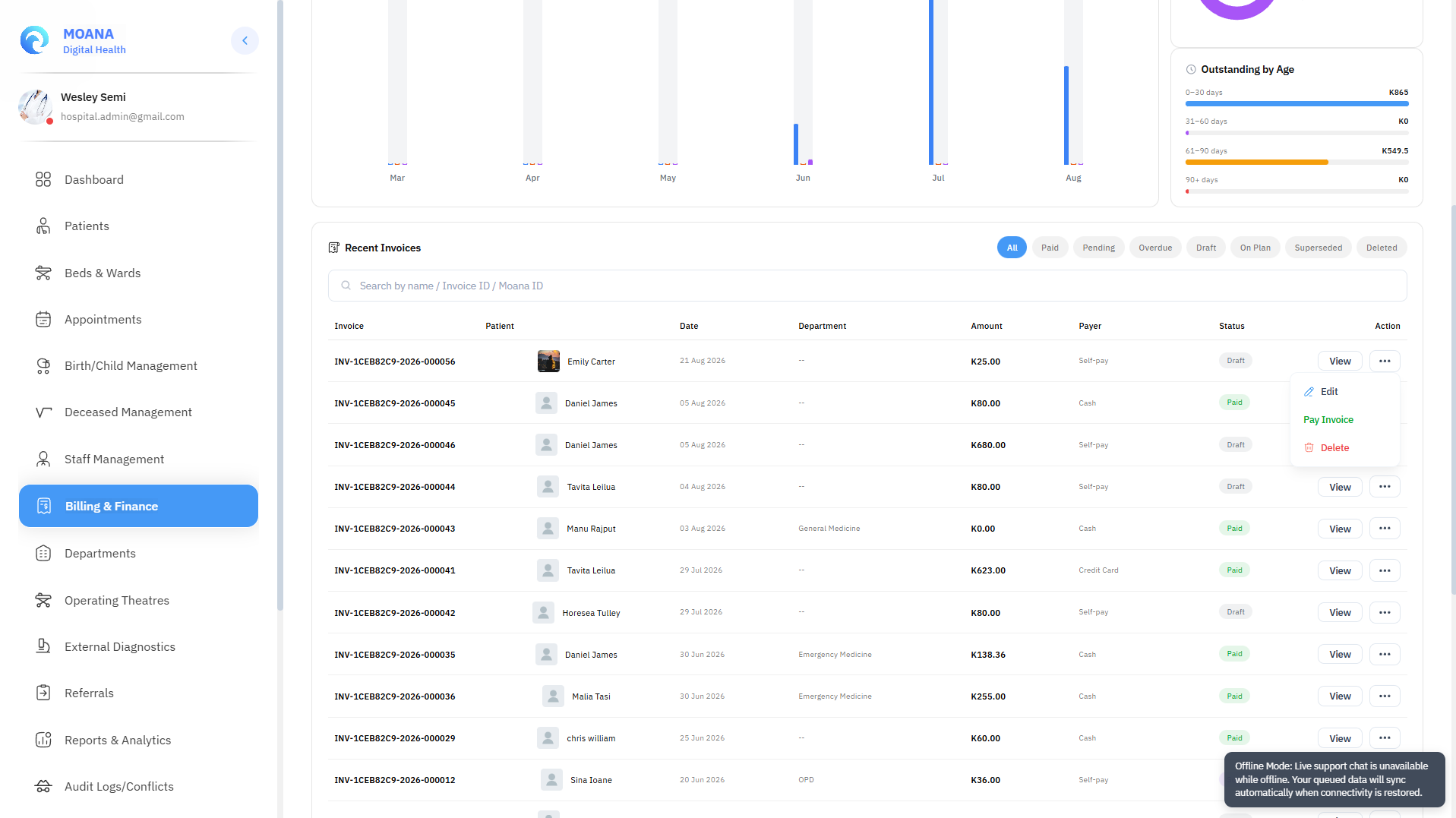
Key Payment Safeguards:
- Unapplied Advance Deposit Detection: Before taking new cash or card payments, the system automatically checks whether the patient has unapplied credits in the Advance Deposits Ledger. If available, the cashier can apply the deposit with one click, reducing or completely settling the invoice.
- Multi-Method Support: Accepts Cash, Credit Card, Debit Card, Bank Transfer, Mobile Money, Insurance, or Cheque.
- Partial Payment Tracking: If the patient pays less than the total balance, the invoice status transitions to
Partially Paidand the remaining balance is updated. - Official Receipt Generation: Upon payment confirmation, click Print Receipt to produce a thermal or A4 official receipt with hospital header, transaction ID, cashier signature, and remaining balance.
5. Advance Deposits Ledger
The Advance Deposits console manages upfront funds collected for major scheduled procedures, elective admissions, or high-cost care.
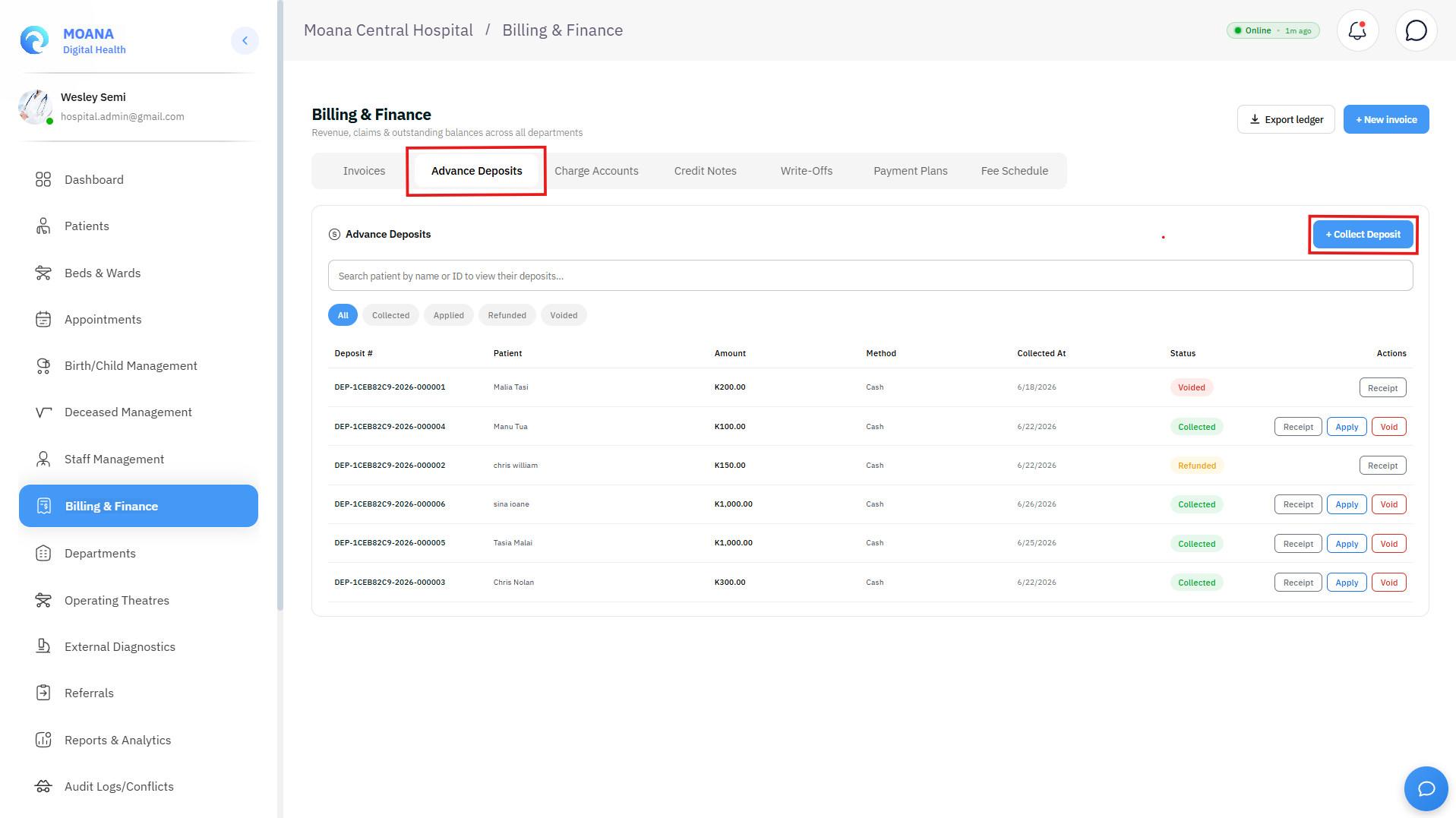
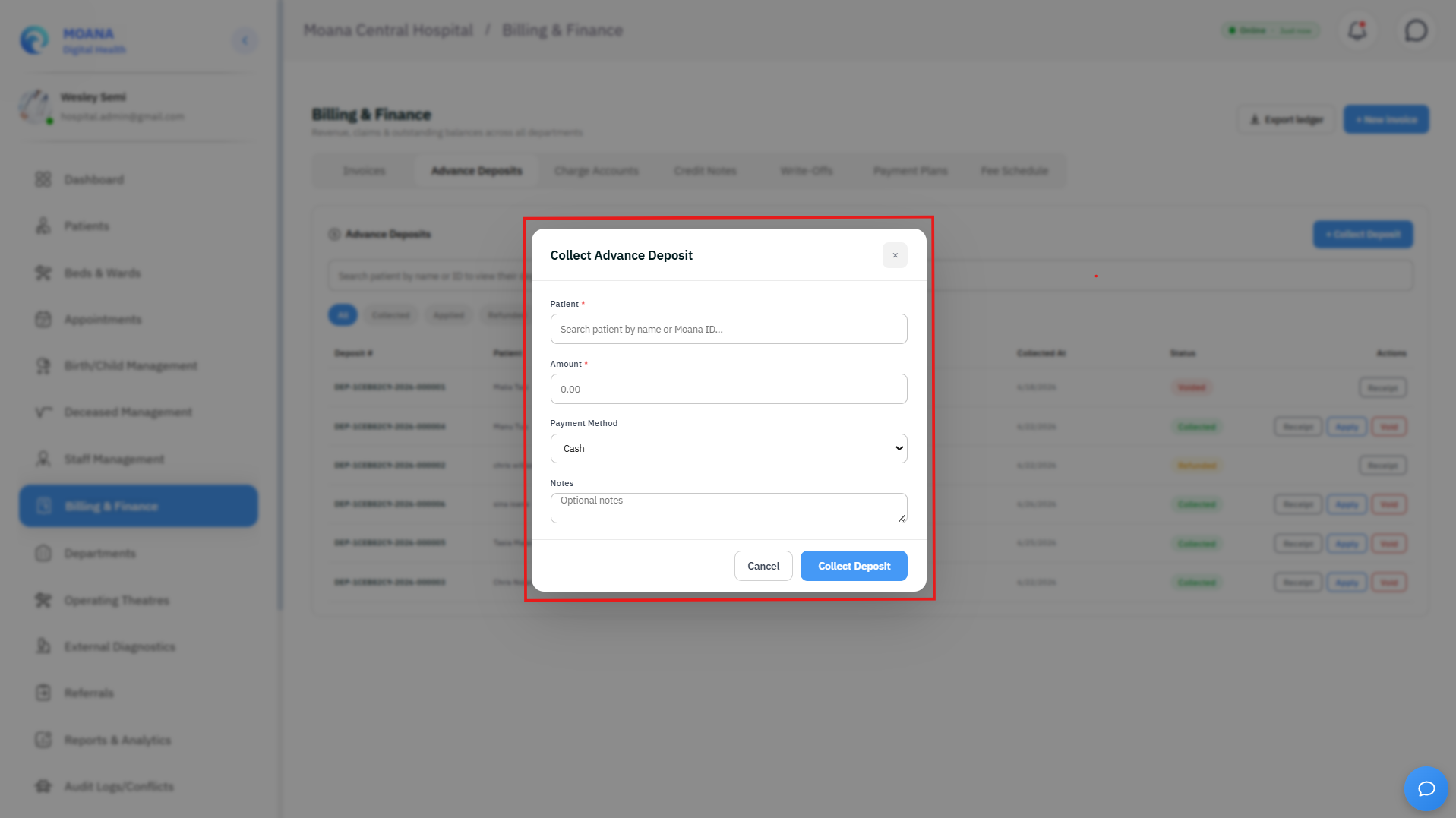
Workflow:
- Click
+ Record Advance Deposit. - Search and select the patient and optional planned encounter.
- Enter the deposit amount, payment method (Cash, Card, Mobile Money, Bank Transfer), and operational notes.
- Click
Record Depositand issue the official deposit receipt. - Automatic Offsetting: When the patient is discharged and their final invoice is generated, the system prompts the cashier to apply the collected deposit against the invoice total.
- Deposit Statuses:
Collected(active credit),Applied(used against an invoice),Refunded(unspent balance returned),Voided(cancelled).
6. Charge Accounts (Direct Service Posting)
The Charge Accounts console enables point-of-service charge capture across inpatient wards, surgical suites, and diagnostic labs.
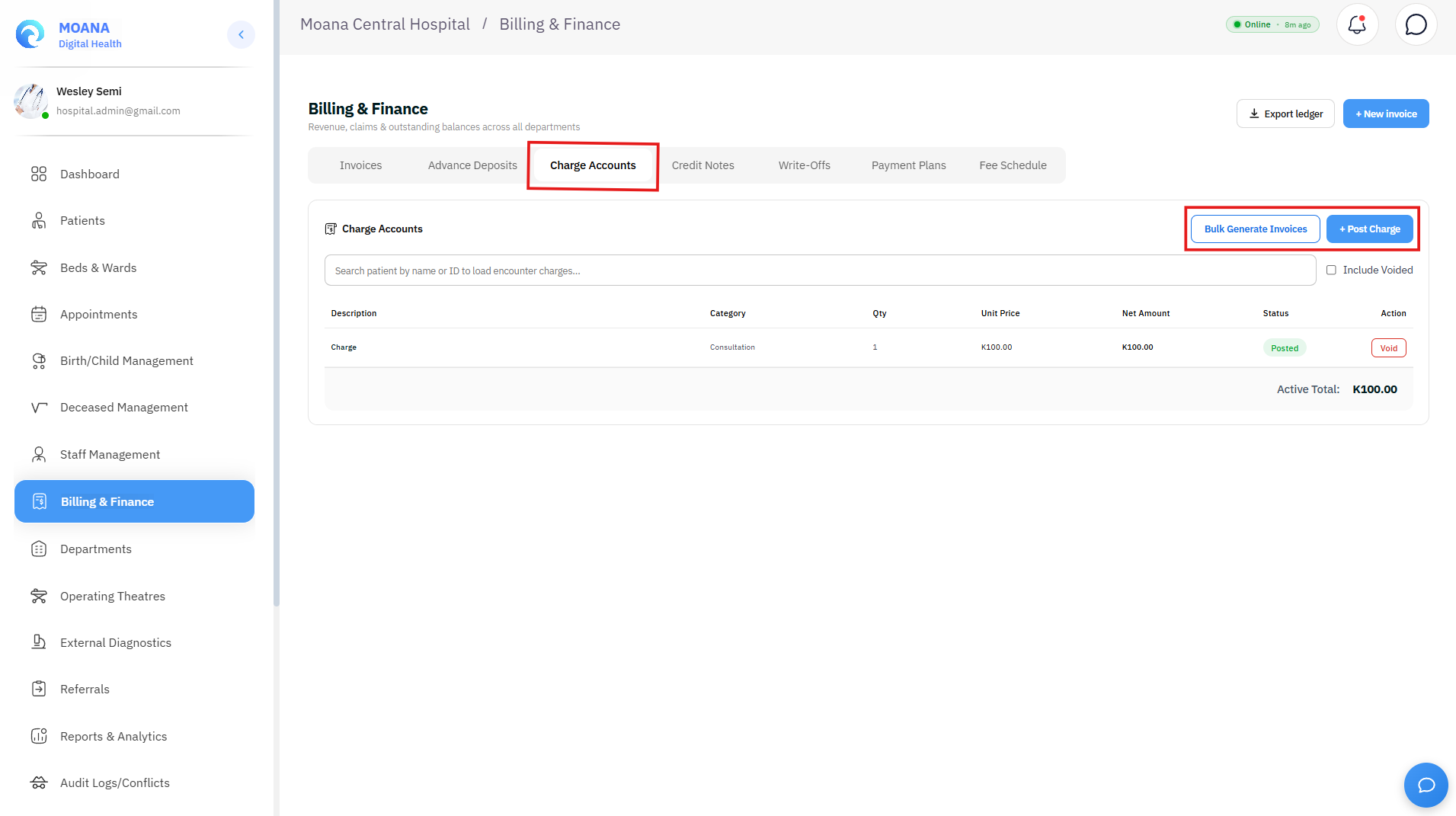
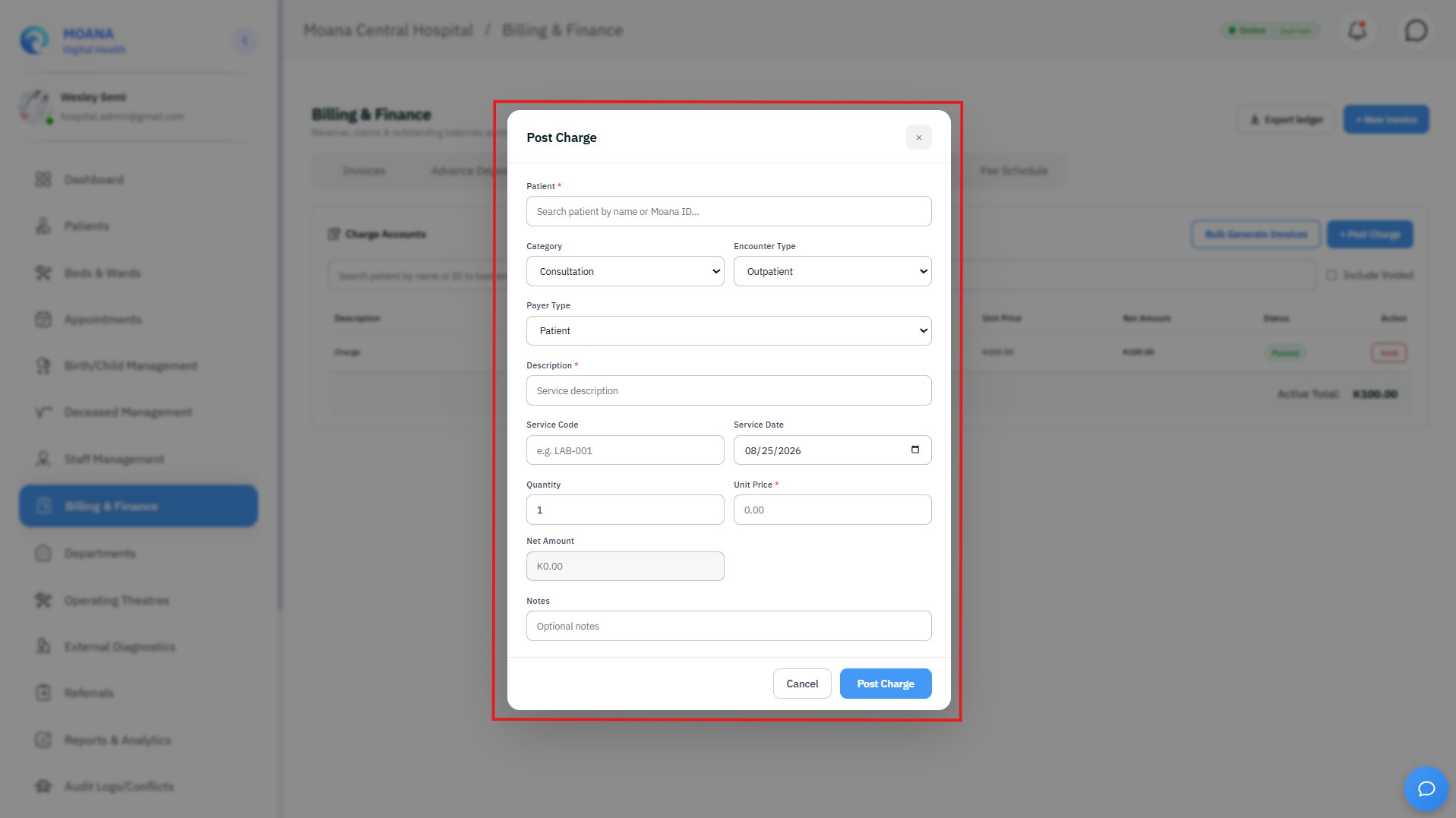
Features:
+ Post Charge: Allows ward clerks and department billing officers to record billable charges directly to an active patient encounter folio.- Charge Lifecycle:
Pending— Logged by department, awaiting billing review.Posted— Verified and attached to the active encounter folio.Billed— Consolidated into an official generated invoice.Voided— Cancelled prior to billing.
- Payer Assignment: Each charge can be flagged as
Patient Self-Pay,Insurance Covered, orCorporate Sponsor.
7. Credit Notes & Dispute Adjustments
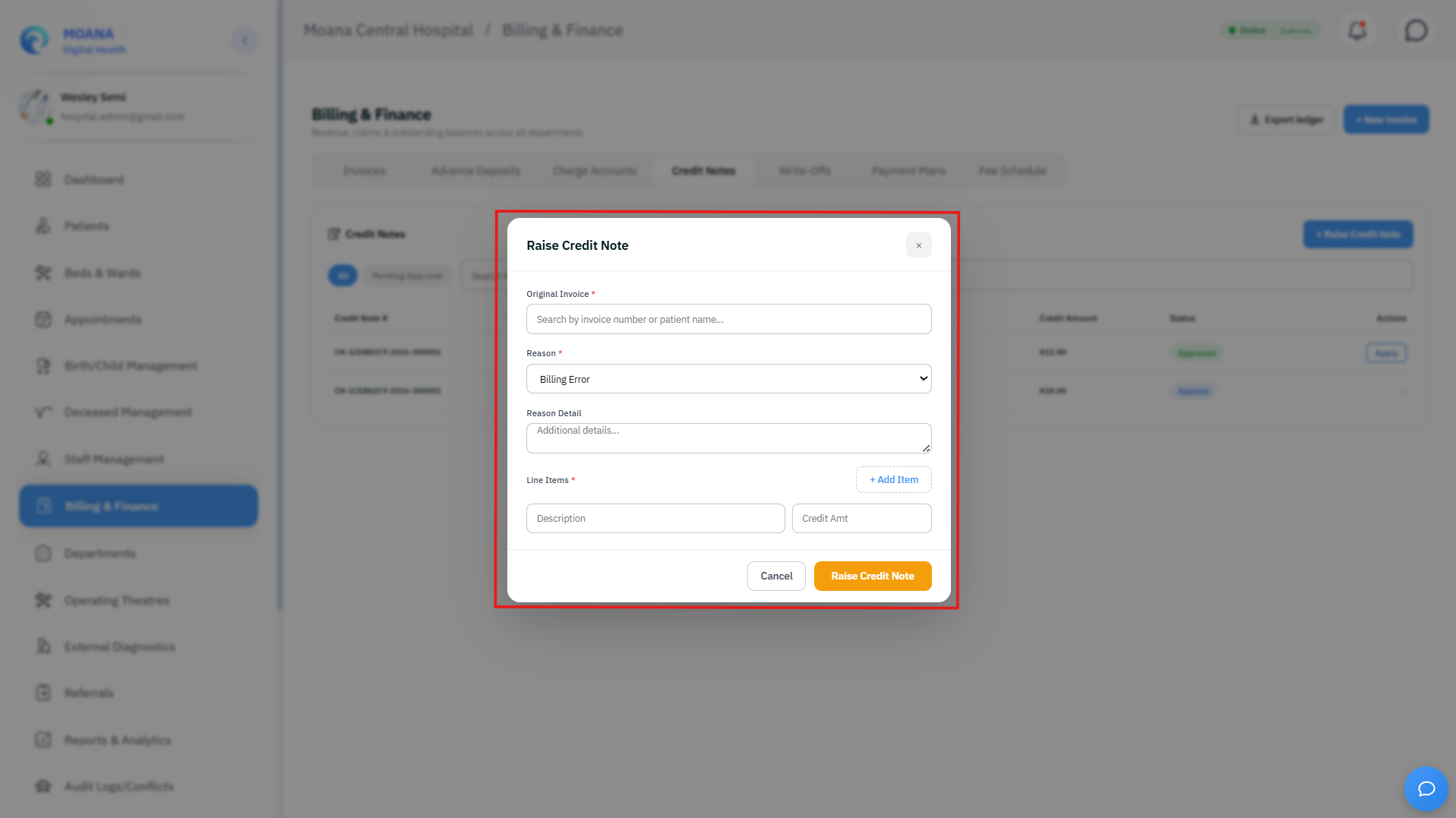
The Credit Notes console provides a compliant mechanism to adjust issued invoices, correct billing errors, or apply authorized discounts without deleting historical records.
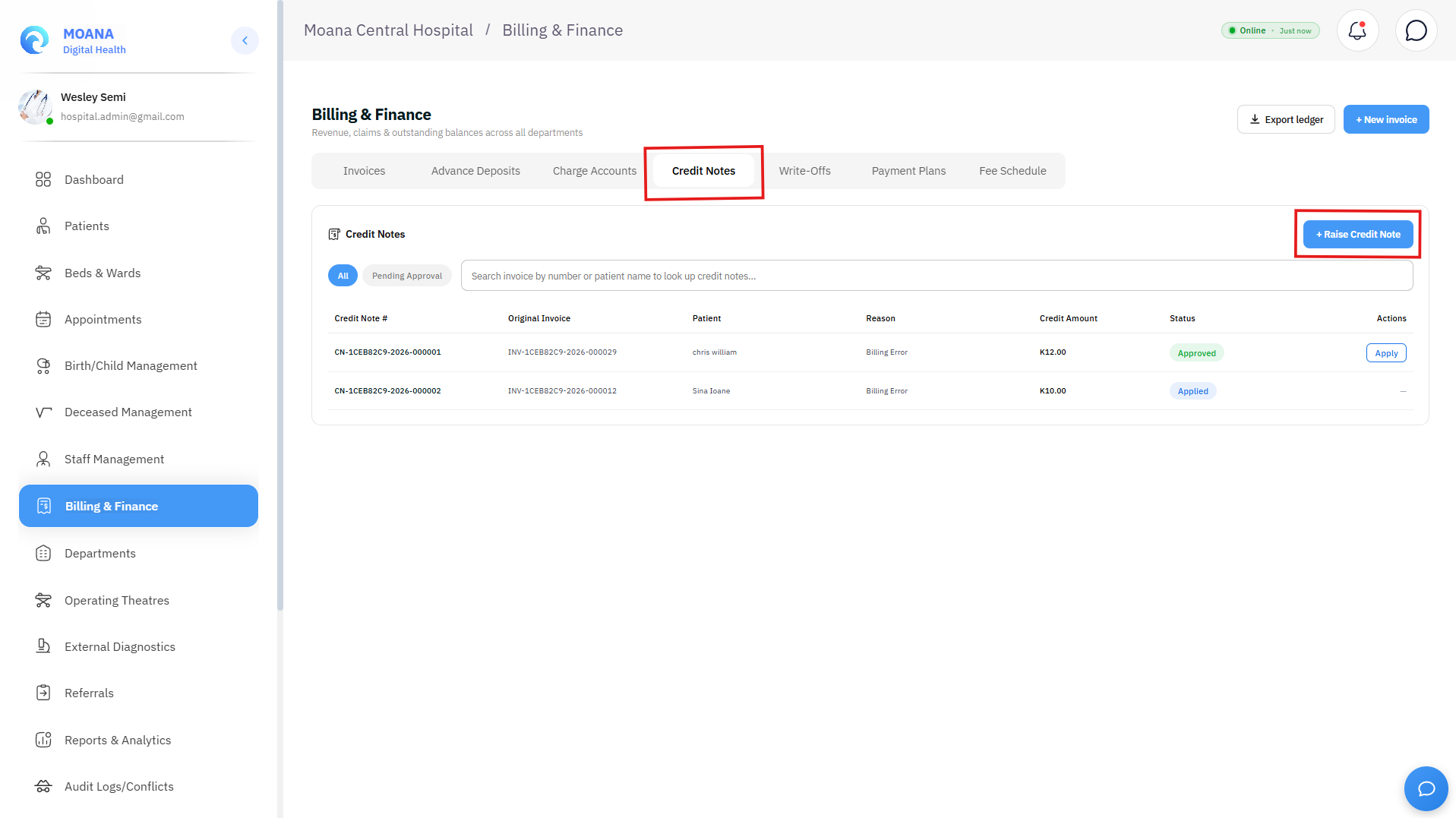
Workflow:
- Click
+ Create Credit Note. - Select the target invoice using the invoice search helper.
- Select a mandatory Reason Code:
Billing ErrorPatient DisputeDuplicate ChargeService Not RenderedInsurance AdjustmentCourtesy WaiverOther
- Enter detailed clinical/administrative justification in Reason Details.
- Specify itemized credit amounts per line item.
- Approval Workflow: Credit notes transition through
Draft$\rightarrow$Pending Approval$\rightarrow$Approved$\rightarrow$Applied.
8. Bad-Debt & Charity Care Write-Offs
The Write-Offs console handles uncollectable balances, indigent patient charity waivers, and deceased patient accounts.
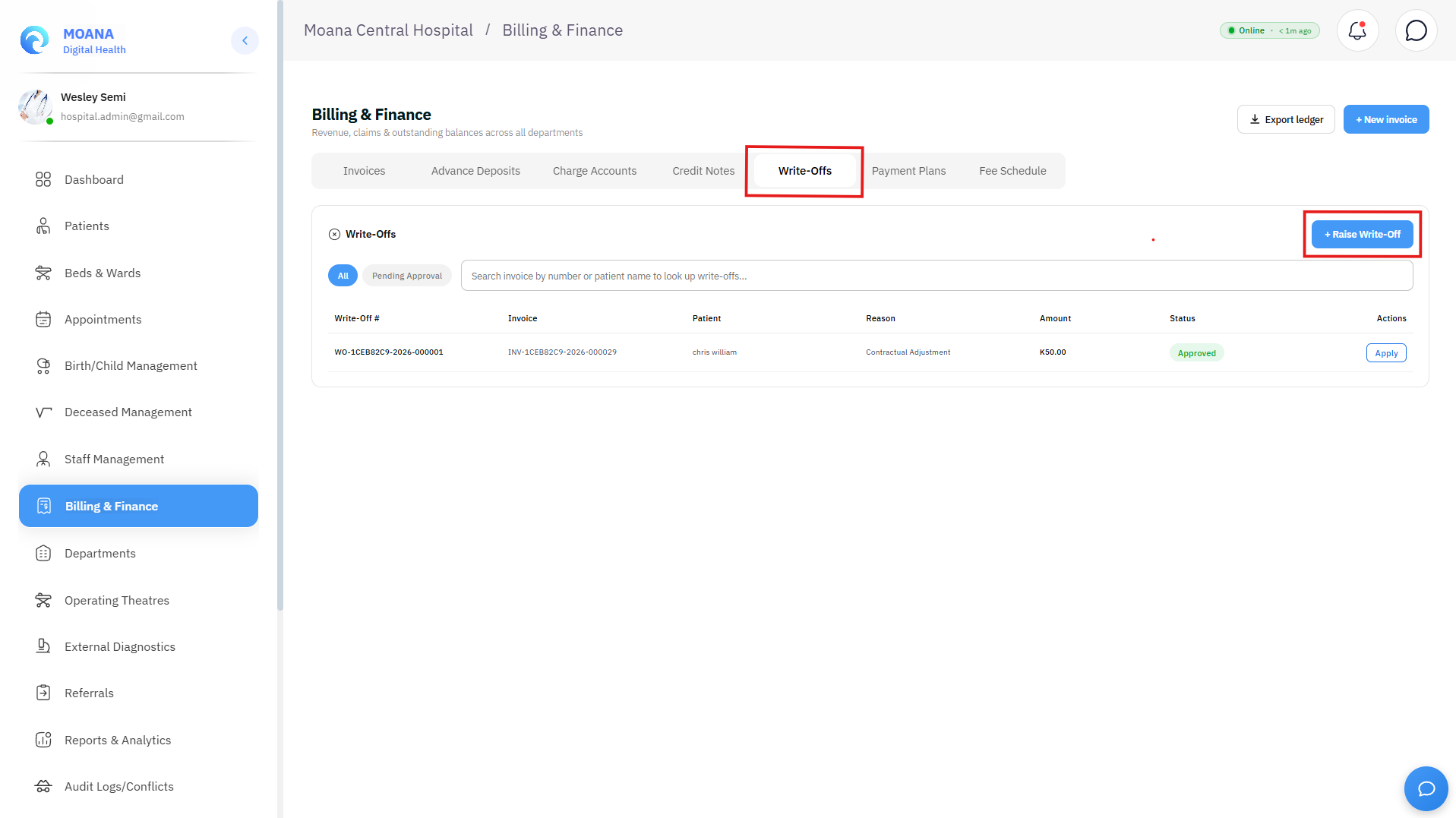
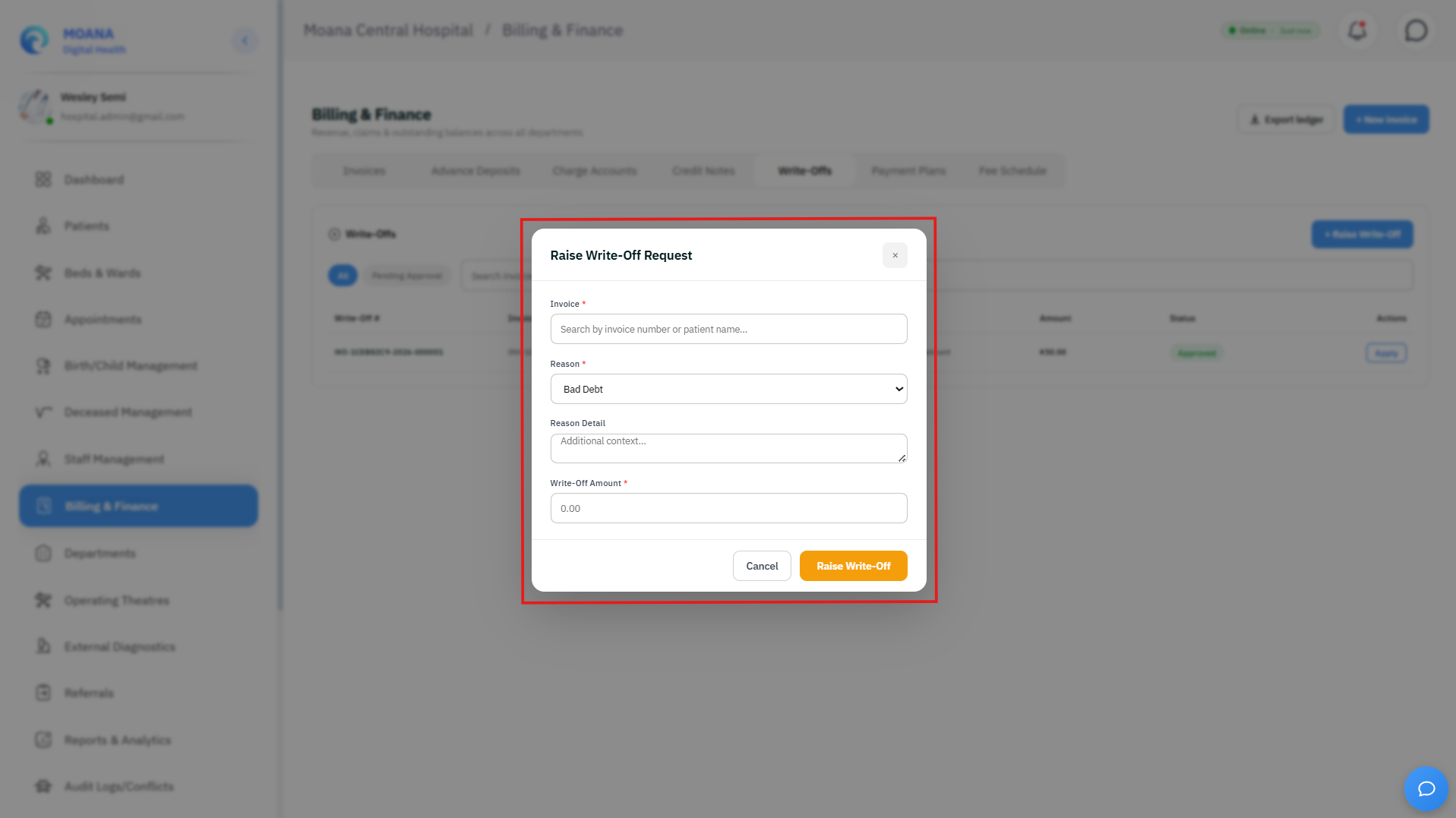
Supervisor Dual Authorization Enforced Write-offs permanently extinguish outstanding patient debt and impact hospital accounting. Every write-off request requires a mandatory reason code, clinical justification, and Finance Supervisor PIN Authorization.
Write-Off Reason Codes:
- Bad Debt: Exhausted collection efforts on overdue accounts.
- Charity Care: Verified indigent patient under hospital social welfare policy.
- Insurance Shortfall: Non-covered contractual shortfall after payer settlement.
- Deceased Patient: Compassionate waiver for deceased indigent patients.
- Contractual Adjustment / Courtesy Waiver: Administrative executive approval.
9. Installment Payment Plans
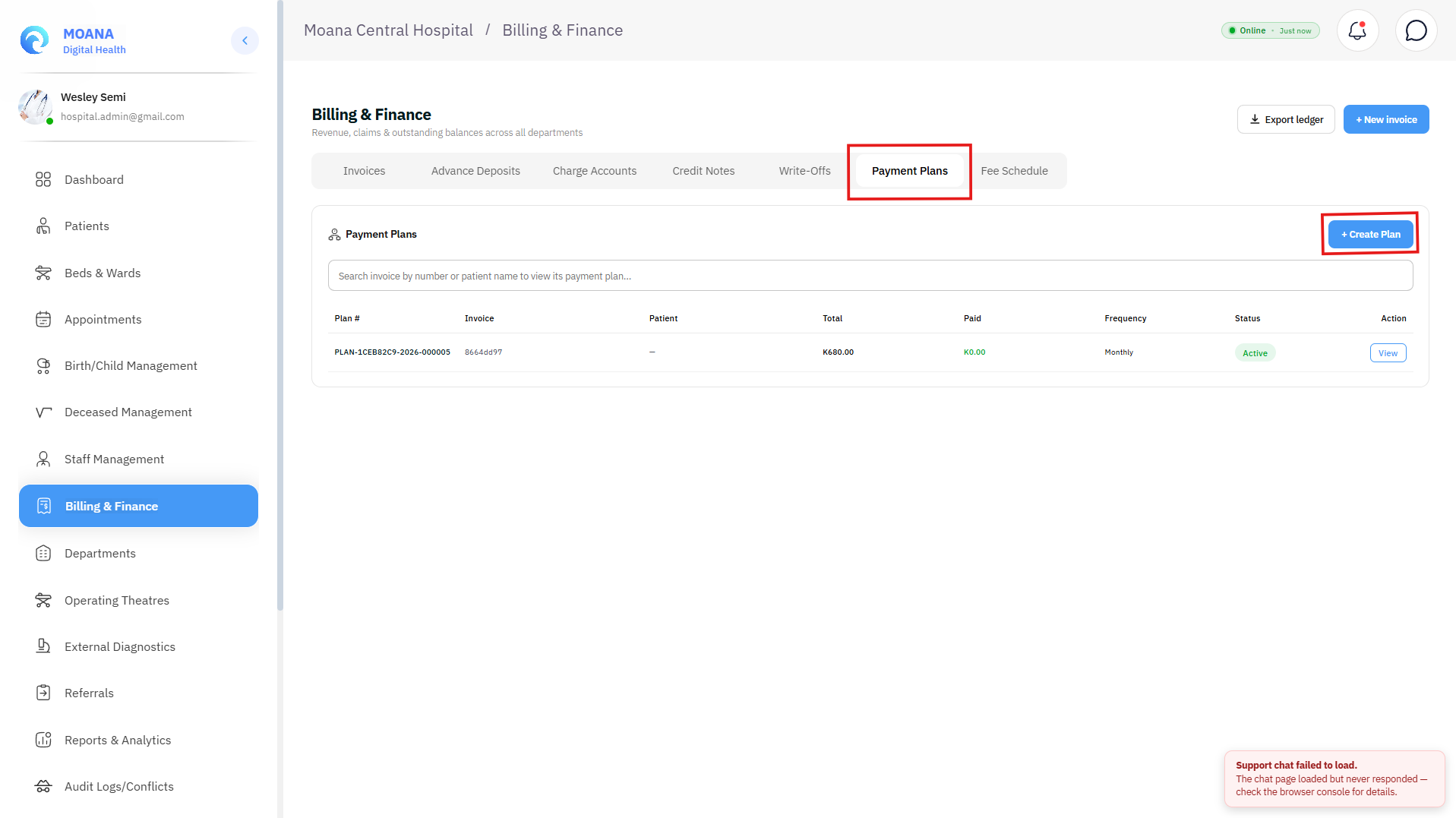
The Payment Plans console allows hospital cashiers to structure manageable installment agreements for patients unable to settle high inpatient bills at discharge.
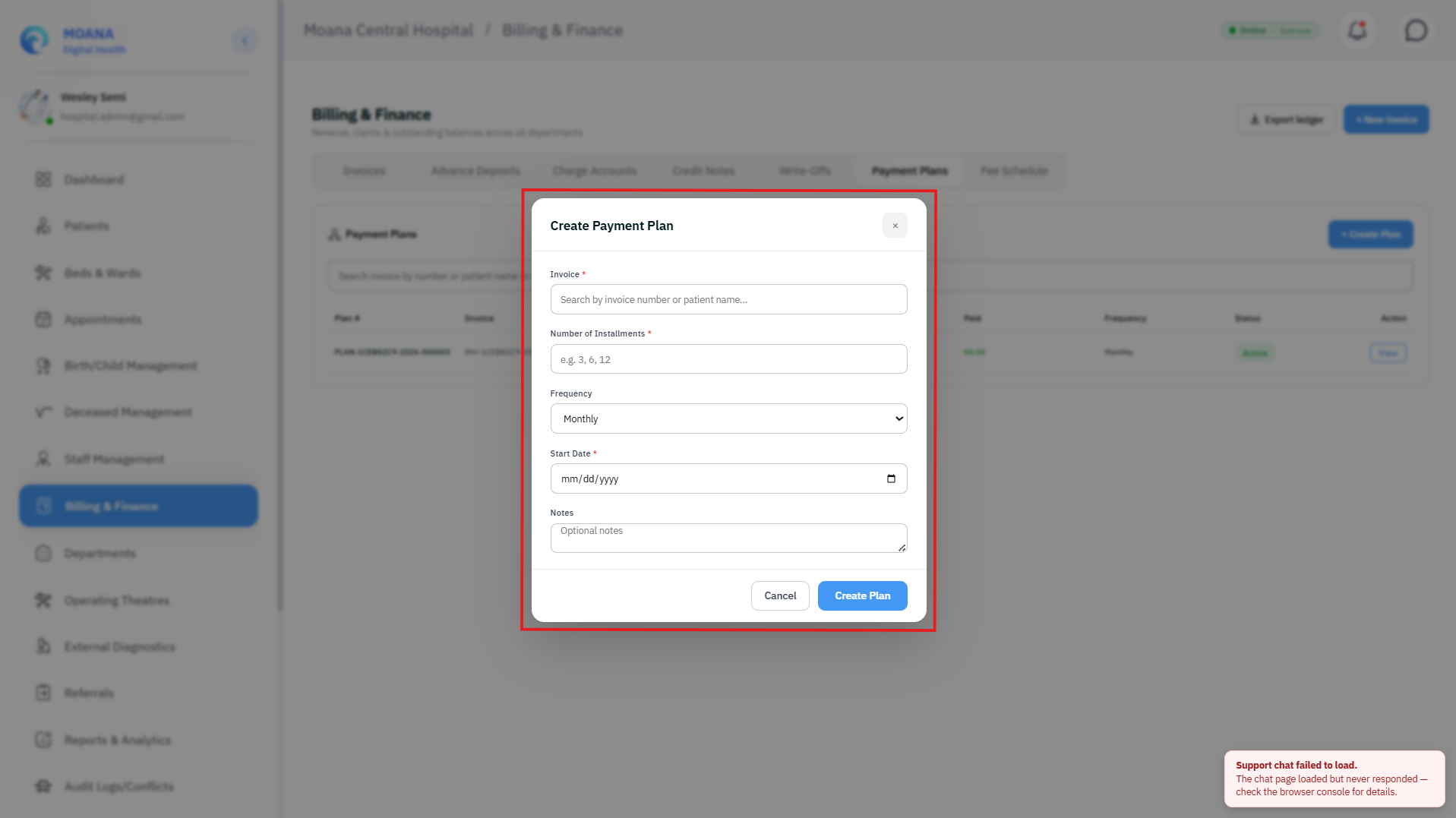
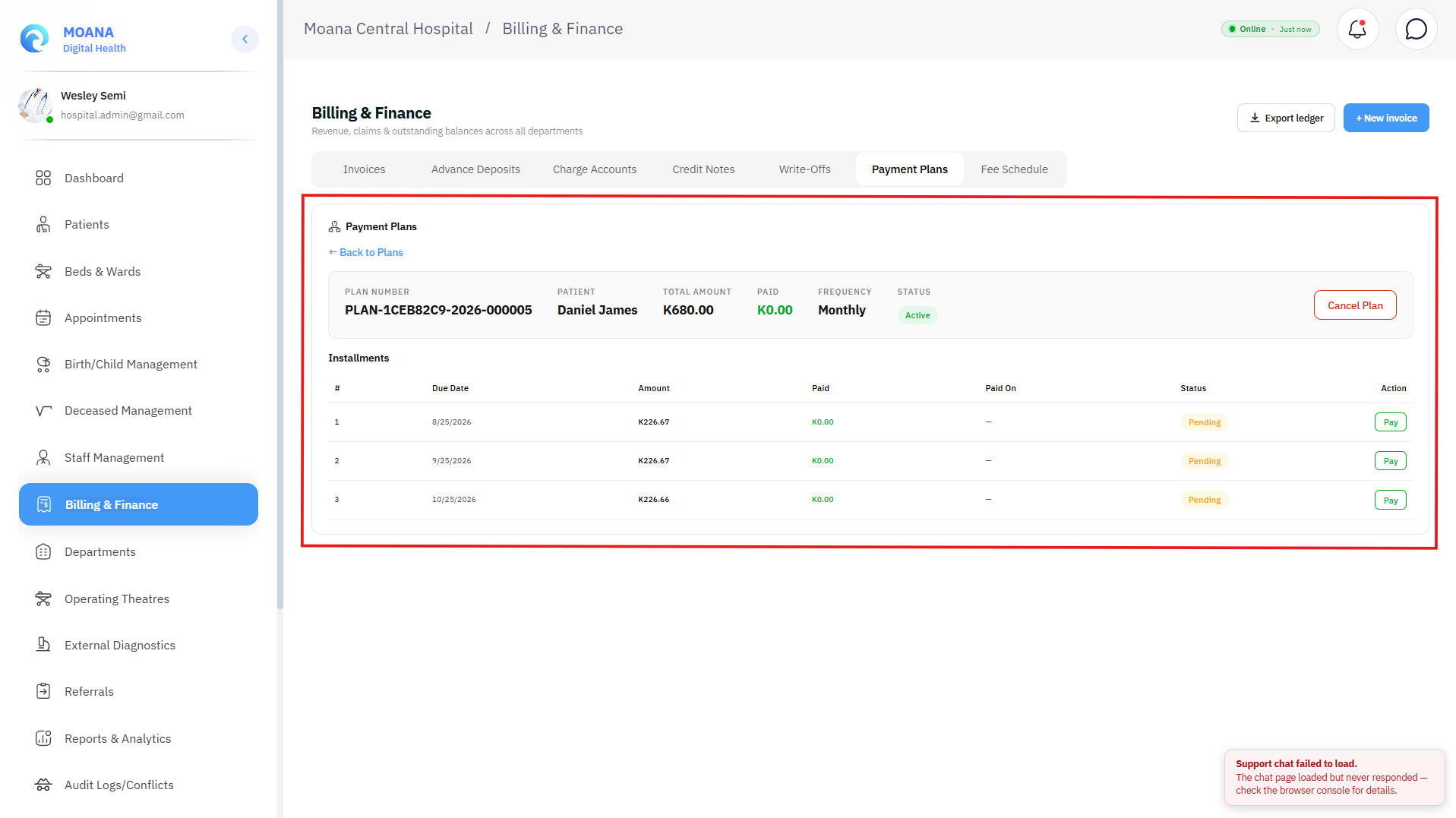
Setting Up a Payment Plan:
- Click
+ Create Payment Plan. - Select the unpaid/outstanding invoice.
- Define the plan parameters:
- Number of Installments: (e.g., 3, 6, 12 installments).
- Frequency:
Weekly,Bi-Weekly,Monthly, orCustom. - Start Date & Downpayment Amount.
- Click
Create Plan. The invoice status transitions toOn Plan. - Schedule Tracking: The system generates an installment schedule table displaying installment number, due date, installment amount, paid amount, and payment status (
Pending,Paid,Overdue,Defaulted). - Recording Installments: As the patient pays each month, click
Record Installmenton the schedule row and print the installment receipt.
10. Master Hospital Fee Schedule
The Fee Schedule console is the master price catalog governing all clinical and diagnostic tariffs across the hospital.
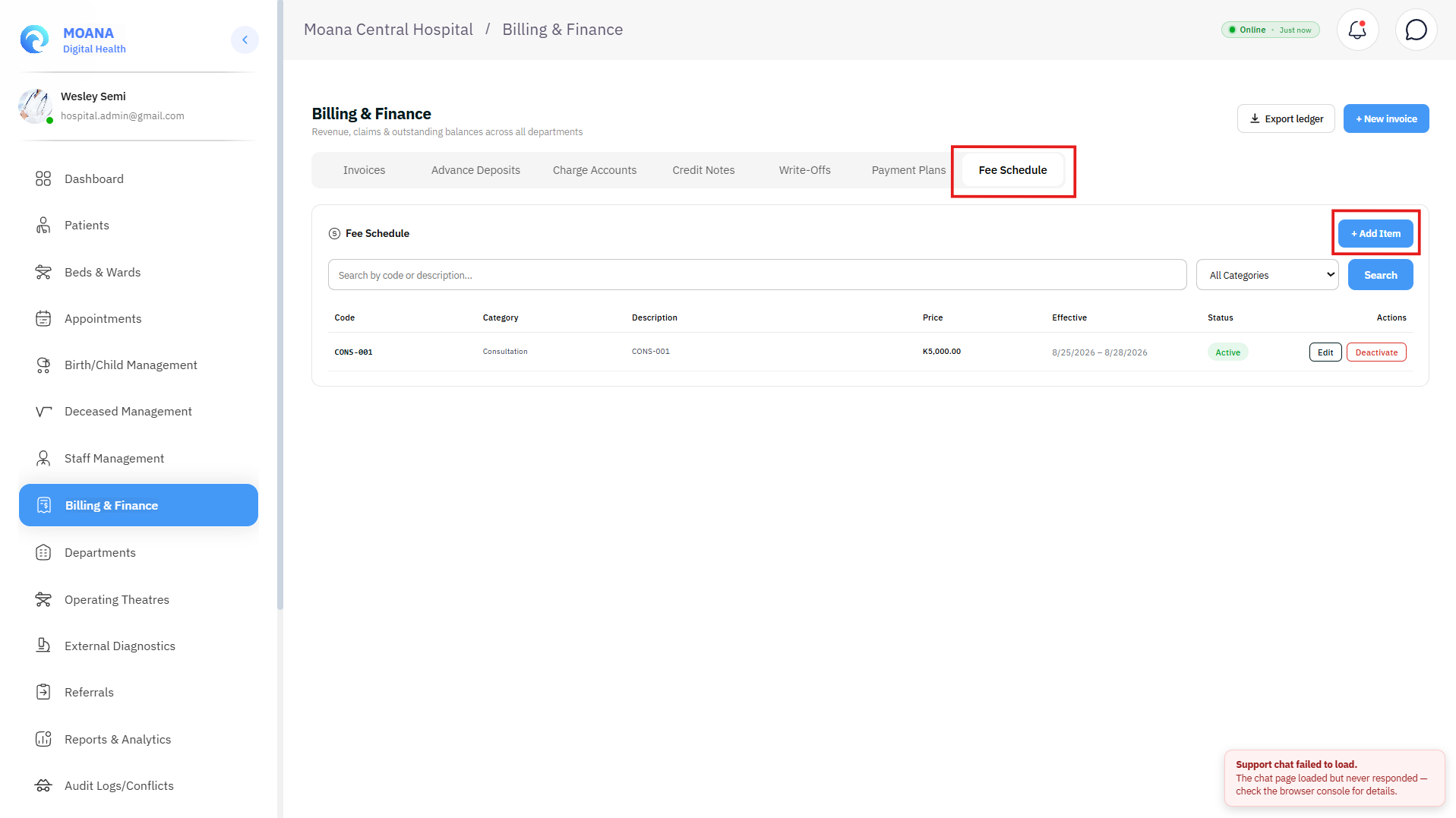
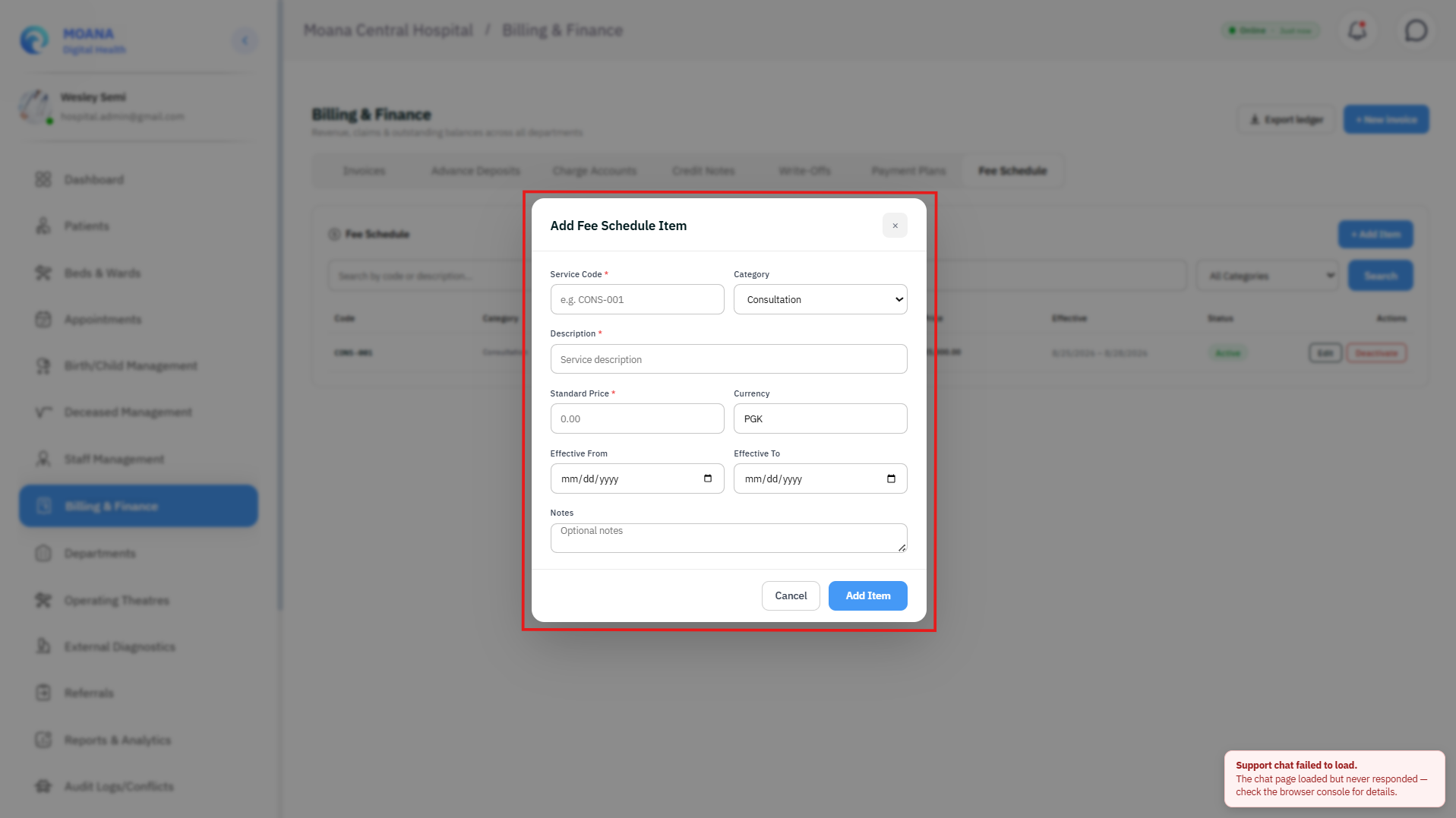
Managing the Fee Schedule:
- Click
+ Add Fee Schedule Item. - Enter the Service Code (e.g.,
CONS-001,CBC-LAB,XRAY-CHEST,BED-ICU). - Select the Service Category:
ConsultationProcedureMedicationLaboratoryImagingAccommodationEmergencySurgerySuppliesOther
- Enter the Description, Standard Price, Currency, and Effective Date Range (
Effective From/Effective To). - Click
Save Item. - Automated Search Integration: Once saved, this item becomes instantly searchable and selectable across the
+ New Invoicemodal,Charge Accountsconsole, and department billing screens.