Platform Architecture, Security & Access
This section provides an overview of the MOANA EHR platform architecture, multi-process desktop model, facility context scoping, breakglass emergency access, and secure logout procedures.
1. System Architecture: Connected Clinical Environment
MOANA EHR operates as an offline-first desktop application designed for continuous 24/7 hospital workflow resilience:
graph LR
    A[Moana Desktop Application] --> B[Clinical & Departmental Dashboards]
    B --> C[Local Offline Database Cache]
    B --> D[Central Hospital EHR Server]
    B --> E[Laboratory & PACS Imaging Network]
| Component | Technology | Operational Function |
|---|---|---|
| Desktop Shell | Electron (Sandboxed, Context-Isolated) | Encapsulated desktop client with native PDF invoice generation, label printing, and offline persistence. |
| Core EHR API | Node.js / NestJS / PostgreSQL | Patient administration, clinical encounters, CPOE ordering, beds/wards, pharmacy dispensary, and billing. |
| Laboratory API (LIS) | Node.js / PostgreSQL | Specimen accessioning, analyzer telemetry, QC Levey-Jennings, and blood banking. |
| Local Cache Storage | Scoped LocalStorage + Dexie IndexedDB | Client-side offline cache storing records, local queues, and sync vectors per facility. |
2. Multi-Dashboard Role Architecture
Rather than a generic monolithic interface, MOANA builds specialized desktop apps tailored to distinct clinical and administrative personas:
- Admin Dashboard: Complete hospital management, bed command center, staff directory, access control matrix, deceased morgue, and billing.
- Doctor Dashboard: Clinical worklist, 3-step SOAP outpatient visits, CPOE prescription pad, lab/imaging order pads, ICU rounds, and breakglass chart access.
- Nurse Dashboard: Inpatient census, eMAR medication administration (Given/Held/Missed), batch vitals entry, ICU admissions, and nursing shift handovers.
- Pharmacy Dashboard: Prescription clinical review, barcode dispensing, dual-witness controlled drug register, cold chain logs, and point-of-sale.
- Laboratory Dashboard: Specimen tube collection, analyzer runs, quality control, result validation, and blood transfusion crossmatching.
- Radiology Dashboard: Imaging worklist, DICOM PACS integration, structured diagnostic reporting, and critical urgency dispatch.
- Surveillance Dashboard: Geospatial disease mapping, syndromic outbreak detection, immunization registry (EIR), and FHIR export.
3. Step-by-Step Access & Security Workflows
Named Accounts Policy Access to MOANA is strictly individual. Shared logins are forbidden. Every clinical note, order, vital sign, and dispensing action is cryptographically signed with the authenticated user's credentials.
Workflow A: User Login & Two-Factor Authentication (2FA)
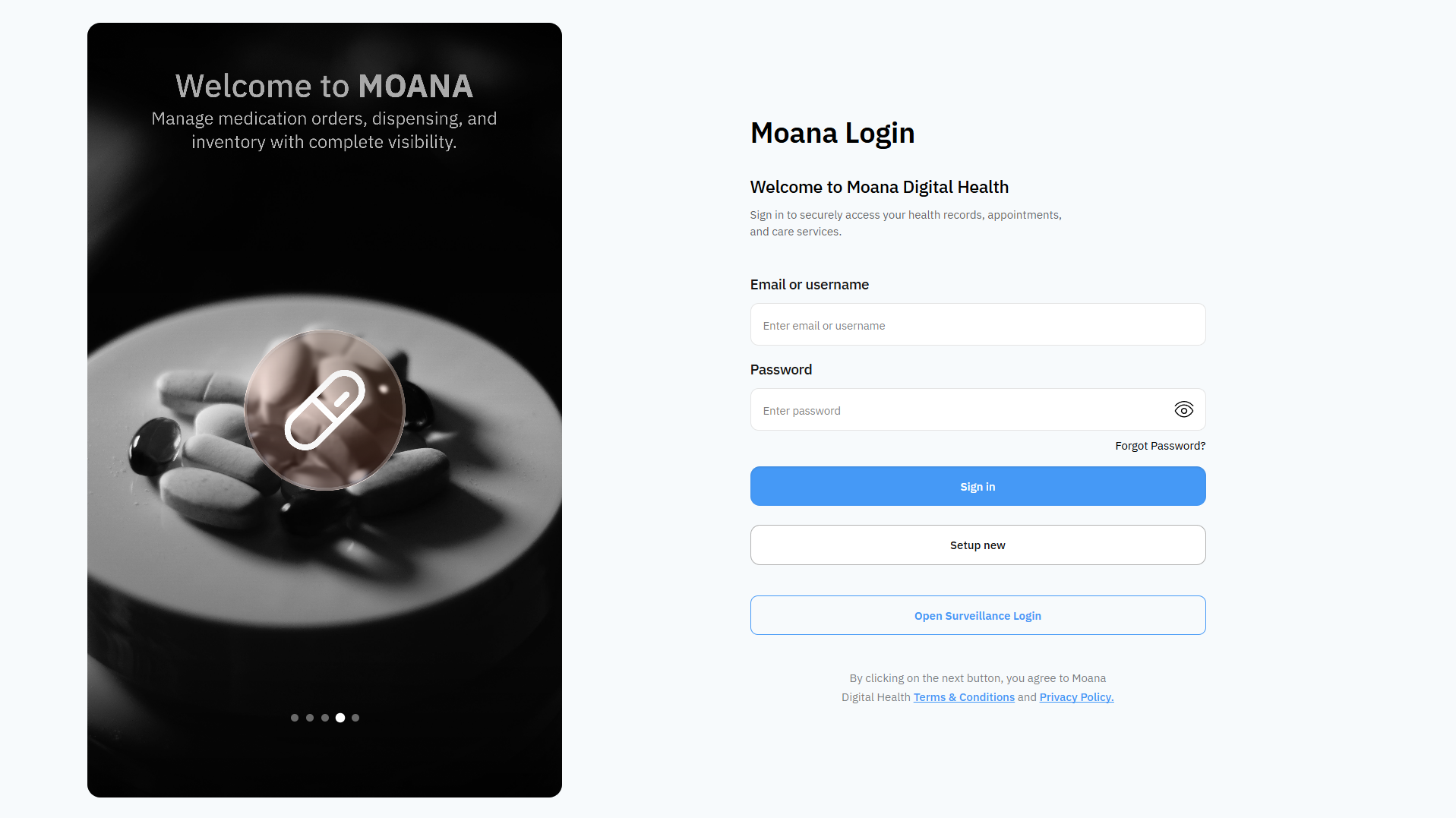
Step 1Launch Application & Enter Credentials
Open the MOANA Desktop client. Enter your registered Email Address or Username and secure Password. Click Log In.
Step 2Two-Factor Authentication (If Configured)
If 2FA is active for your account, enter the 6-digit one-time password (OTP) sent to your device or email and click Verify Code.
Step 3Select Working Facility Scope
If your user account is linked to multiple healthcare facilities (e.g., Central Hospital and District Health Clinic), select your current working location. The application configures your workspace and loads the active department records.
The user dashboard loads with the active facility name, location context, and appropriate role navigation sidebar.
Workflow B: Emergency Breakglass Access Protocol
When an acute clinical emergency occurs and an attending physician must immediately inspect or order treatment for a patient assigned to another provider:
graph TD
    A[Doctor Clicks Restricted Patient Record] --> B[System Prompts Emergency Breakglass Window]
    B --> C[Display: Patient Assigned to Another Provider]
    C --> D[Doctor Selects / Inputs Clinical Justification Reason]
    D --> E[Click 'Confirm Breakglass Access']
    E --> F[Instant Chart Unlock + Security Audit Event Logged]
- Click on the restricted patient record in the directory.
- The Emergency Breakglass Access Window appears.
- Select or enter the clinical justification (e.g., Emergency Resuscitation, Critical Lab Alert, Cross-Covering Night Shift).
- Click Confirm Breakglass Access.
- The complete medical chart unlocks immediately, and an unalterable security event is permanently written to the system audit log.
Workflow C: Secure Logout with Offline Sync Guard
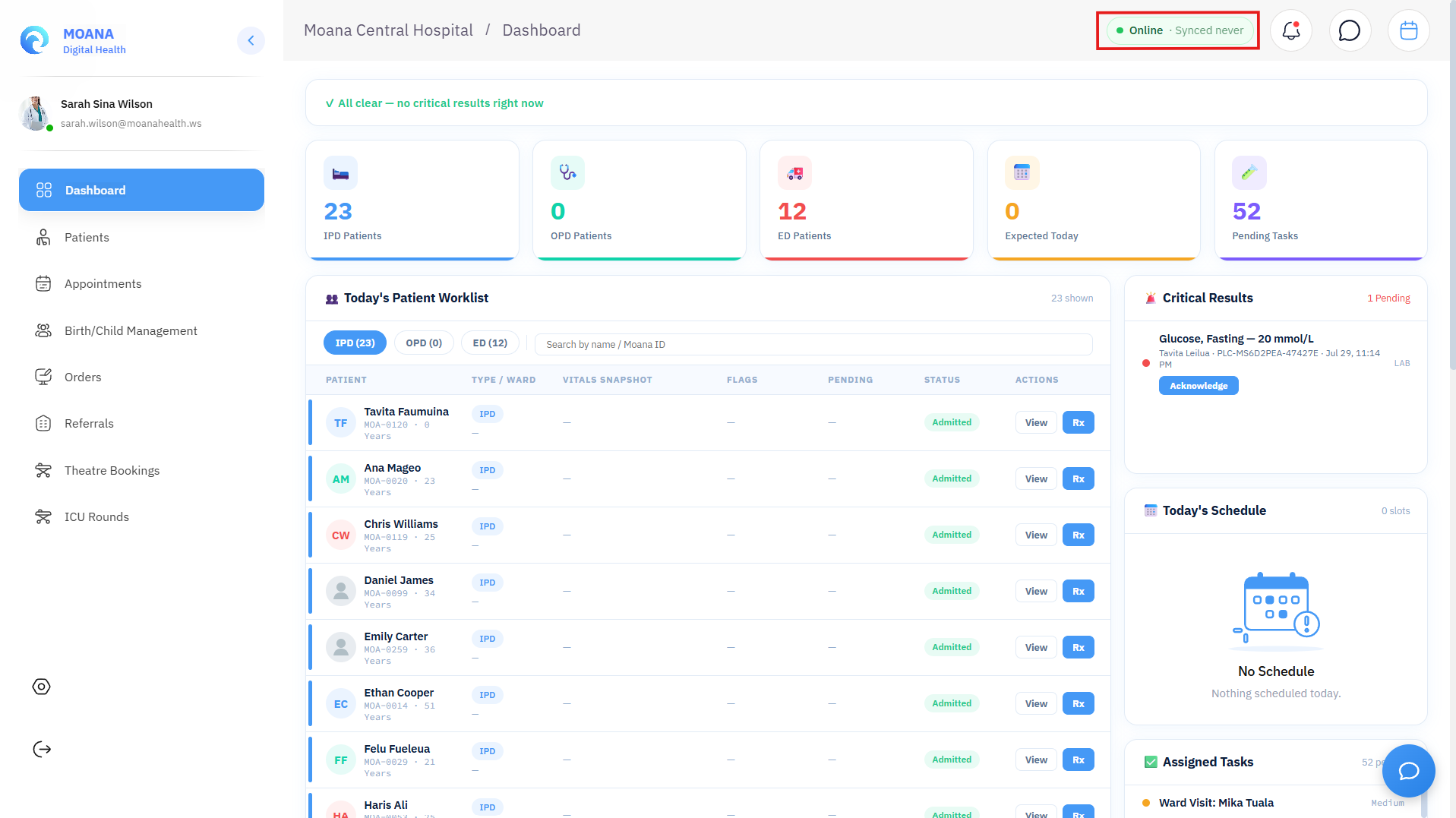
- Click Logout on the bottom sidebar or user header.
- If all local records have synced to the server, the session clears immediately.
- If un-synced offline records remain in the local queue, the Pending Synchronization Logout Guard activates:
- Displays:
⚠️ You have X pending changes waiting to sync to the server. - Wait for Sync / Sync & Logout (Recommended): Uploads all pending offline clinical data to the server and terminates the session cleanly.
- Force Logout Anyway (Offline Queue Retained): Preserves local offline edits in device storage and exits.
- Cancel: Returns to the application to continue work.
- Displays:
Prevent Data Loss Always choose Wait for Sync when working on shared hospital computers to ensure bedside charting is securely uploaded to the central database.