Morgue, Mortuary Services & Deceased Management
The Deceased Management & Mortuary Services module in MOANA handles the sensitive, legally governed workflows surrounding patient deaths. It provides end-to-end management from initial clinical death certification and automated ward bed release to refrigerated morgue bay allocation, personal belongings custody, autopsy and coroner tracking, and authorized body release.
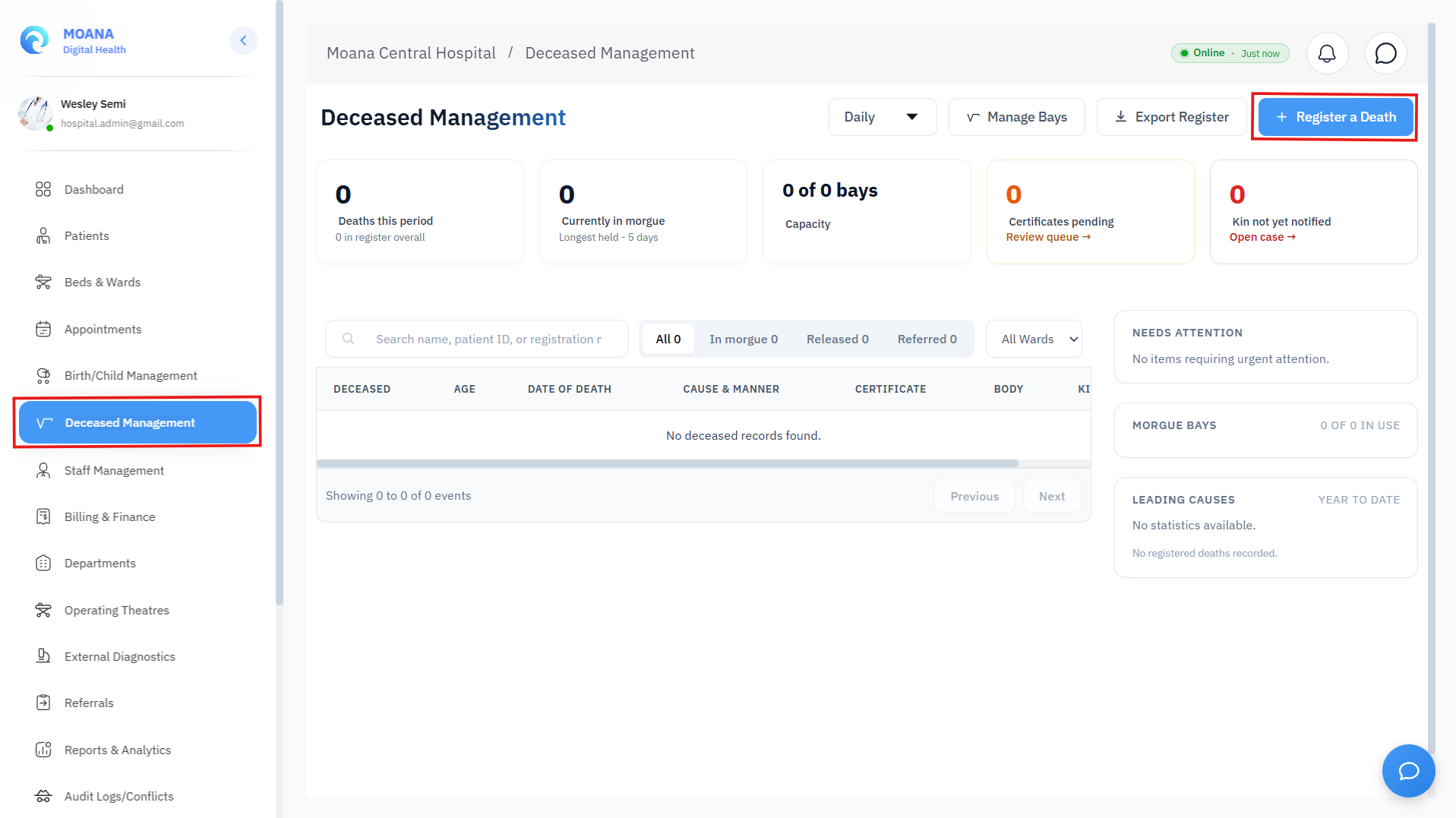
Mortuary Command Console showing active morgue census, pending death certificates, and release schedules.🔍 Click to enlarge
1. Safety Principles & Legal Pre-Requisites
- Authorized Roles: Attending Doctors (medical certification), Mortuary Officers (bay allocation & body release), Ward Nurses (ward death hand-off), and Hospital Security (witness authentication).
- Atomic Ward Bed Release: Registering a death immediately discharges the deceased patient from their hospital ward bed, preventing bed census deadlocks and triggering the terminal cleaning protocol.
- Release Lockout Gate: The system enforces an absolute system-level lockout preventing body release until an official Medical Certificate of Cause of Death is digitally signed by the certified physician or coroner.
2. End-to-End Deceased Management Workflow
stateDiagram-v2
    [*] --> DeathOccurs: Clinical Ward / ED / Brought-In-Dead (BID)
    DeathOccurs --> DeceasedRegistered: Register Death & Free Ward Bed
    DeceasedRegistered --> MorgueBayAllocated: Assign Cold Bay & Affix Waterproof Tag
    MorgueBayAllocated --> CertificateSigned: Doctor Signs ICD-10 Cause of Death
    CertificateSigned --> AutopsyOptional: Forensic / Coroner Review (If Required)
    AutopsyOptional --> BodyReleased: Dual-Witness Body Handover to Next-of-Kin
    BodyReleased --> BayDisinfection: Vacate & Sanitize Refrigeration Bay
    BayDisinfection --> [*]
Step 1: Registering a Death & Ward Bed Discharge
- Navigate to Deceased Management (accessible from Ward Census, Emergency Intake, or Executive Dashboard).
- Click "+ Register Deceased":
- Patient Selection: Select from active hospital inpatients, emergency department cases, or register an external Brought-In-Dead (BID) case.
- Date & Precise Time of Death: Recorded to the exact minute.
- Location of Death: Ward Name, Bed Number, ICU Suite, Emergency Resuscitation Bay, or Transit.
- Certifying Clinician: Select the attending medical officer who pronounced death.
- Click "Submit Death Registration":
- Immediate Bed Release: The inpatient bed switches atomically from
Occupied$\rightarrow$Cleaning (Yellow), ready for terminal disinfection. - EHR Status Lock: The patient's longitudinal record is flagged as
Deceased, restricting further prescription or diagnostic orders.
- Immediate Bed Release: The inpatient bed switches atomically from
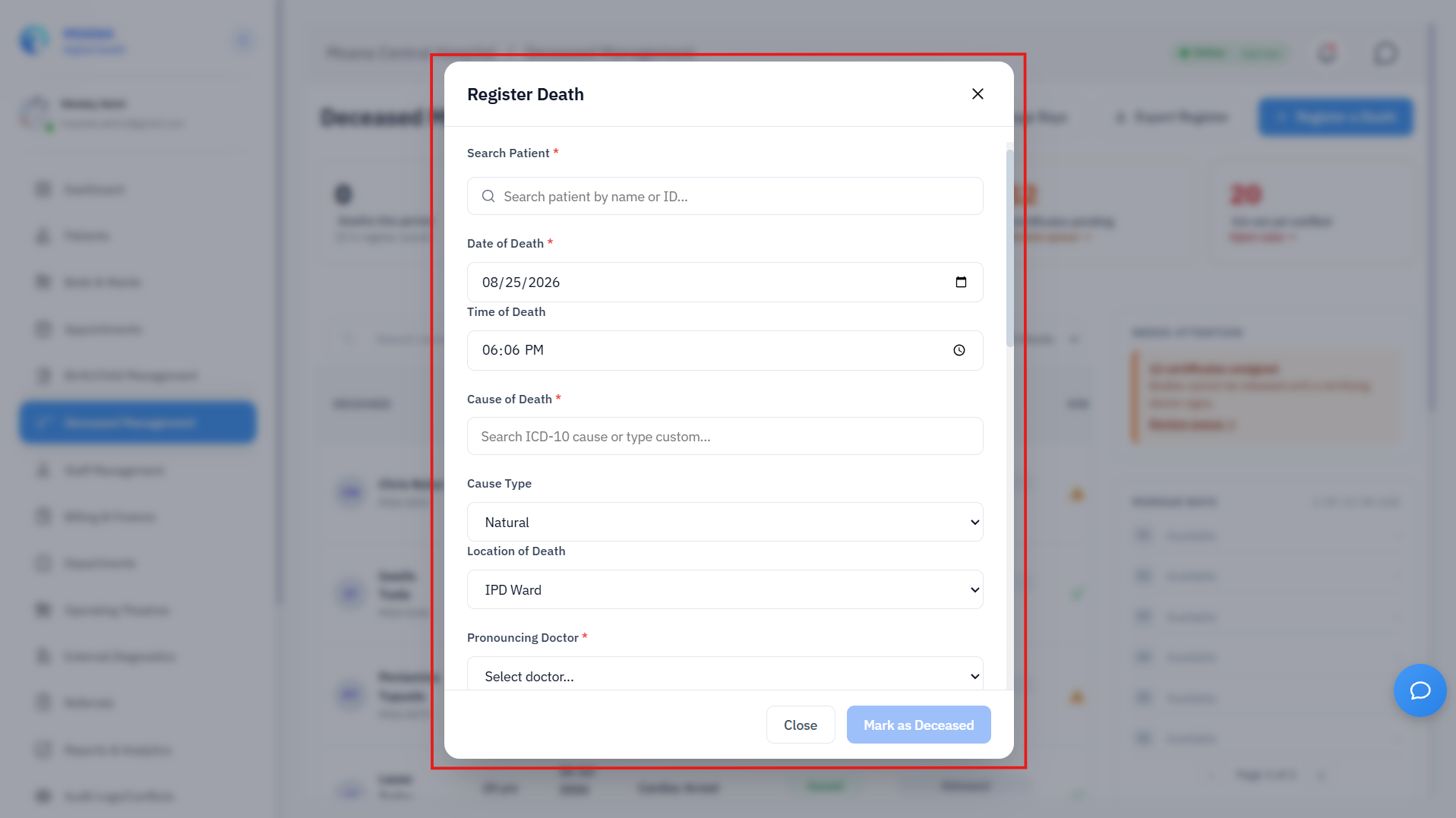
Register Deceased Dialog capturing time of pronouncement and automatic ward bed discharge.🔍 Click to enlarge
Step 2: Mortuary Cold Bay Allocation & Custody Logging
When the body arrives at the hospital mortuary facility:
- Open the Morgue Bay Console.
- Click "Assign Bay" on the incoming deceased record.
- Select an available refrigeration compartment from the visual bay layout (e.g., Bay 01 to Bay 32).
- Valuables & Belongings Custody:
- Inventory personal effects (e.g., Jewelry, Mobile phone, Clothing, Wallet).
- Record witness staff signatures and seal items in the tamper-evident mortuary property bag.
- Physical Tagging: Generate the waterproof mortuary wrist/toe tag containing the Patient Name, Health ID, Date of Death, and assigned Morgue Bay number.
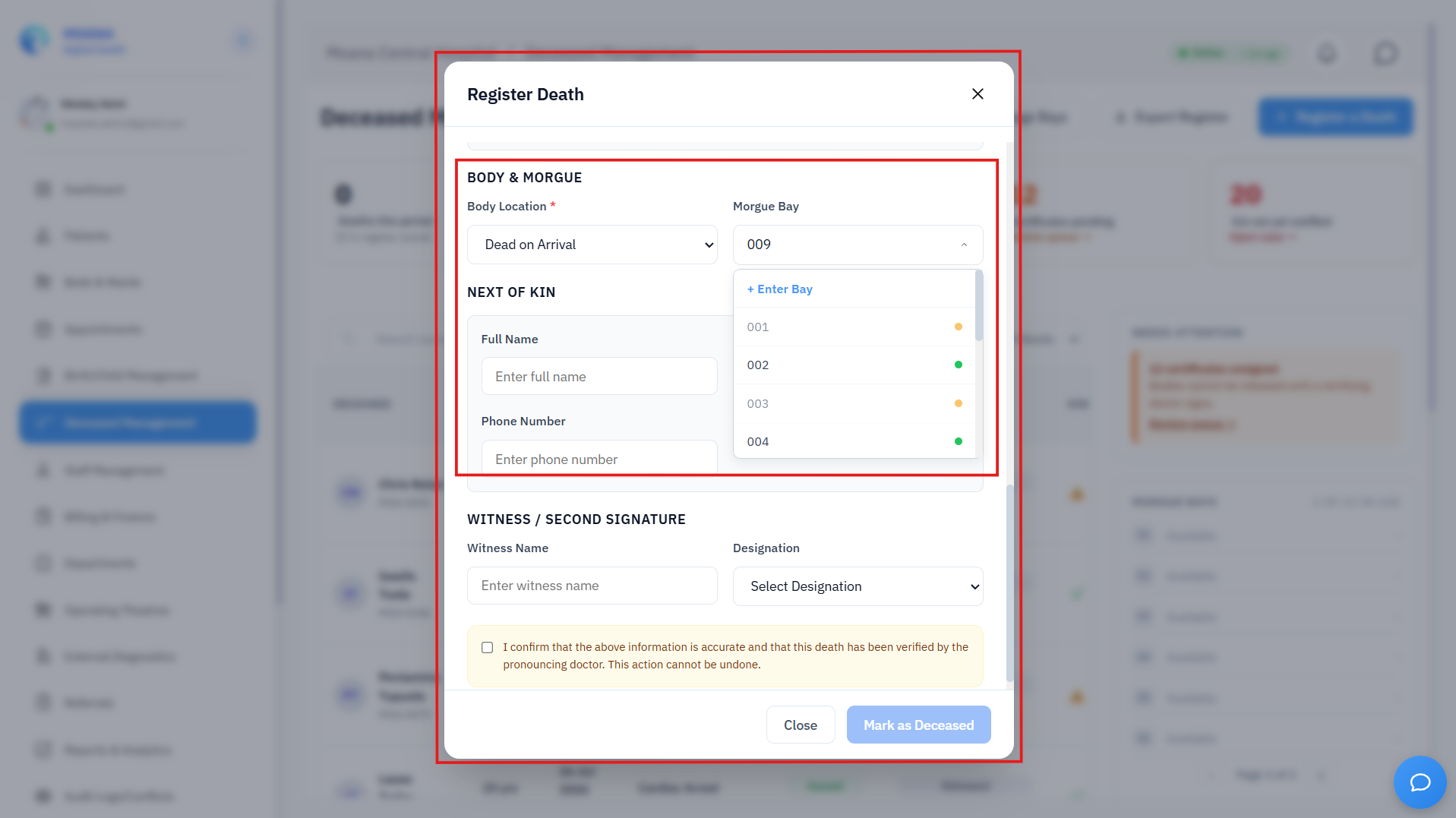
Mortuary Refrigeration Bay Registry and Bay Allocation Grid.🔍 Click to enlarge
Step 3: Medical Certificate of Cause of Death (MCCD)
The certifying physician opens the deceased record to complete the standard legal death certificate:
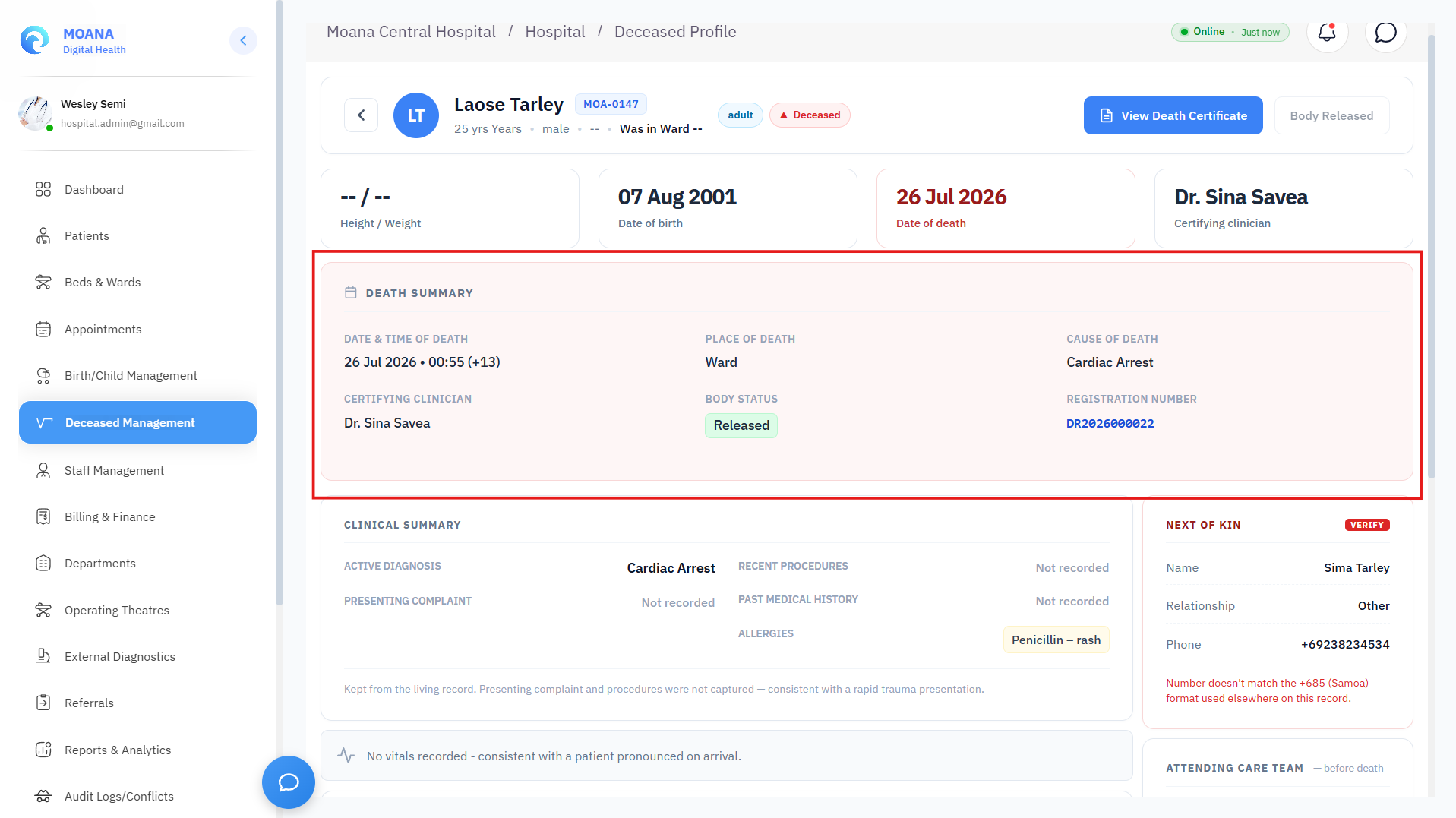
Medical Certificate of Cause of Death form with ICD-10 coding and line-by-line etiology.🔍 Click to enlarge
- Part I: Disease / Condition Directly Leading to Death:
- Line (a): Immediate cause (e.g., Septic Shock).
- Line (b): Antecedent condition giving rise to Line (a) (e.g., Peritonitis).
- Line (c): Underlying root cause with mandatory ICD-10 Code (e.g., K65.0 - Acute Peritonitis secondary to perforated peptic ulcer).
- Part II: Other Significant Contributing Conditions:
- Chronic comorbid factors (e.g., I10 - Essential Hypertension, E11.9 - Type 2 Diabetes).
- Manner of Death:
- Select:
Natural,Accidental,Homicide,Suicide, orPending Coroner Investigation.
- Select:
- Post-Mortem / Autopsy Requirement:
- Check if a forensic autopsy or clinical pathological examination is mandated by law.
- Apply the physician's secure digital signature. Certificate status transitions from
Draft$\rightarrow$Signed.
Step 4: Family Handover & Authorized Body Release
graph LR
    A[1. Verify Signed Death Certificate] --> B[2. Check Next-of-Kin National ID]
    B --> C[3. Dual-Witness Authentication]
    C --> D[4. Issue Official Burial Permit & Release Body]
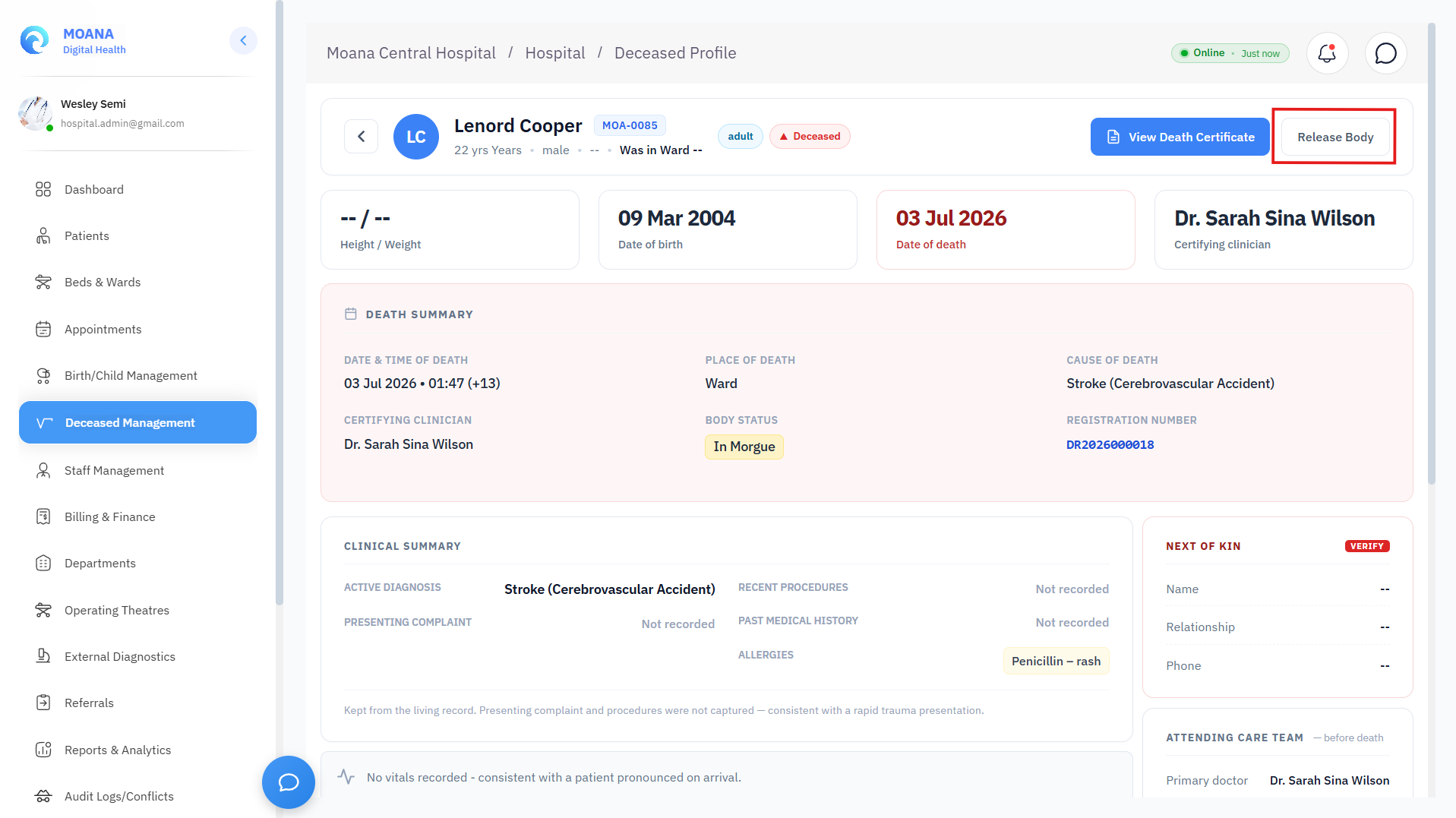
Mortuary Body Release Authorization with next-of-kin verification and dual-witness signature.🔍 Click to enlarge
- Open the record and click "Process Body Release".
- Prerequisite Safety Gate: The system verifies that the Medical Death Certificate is signed and that any Coroner / Police holds have been formally lifted.
- Claimant Verification:
- Record Next-of-Kin Full Name, National ID / Passport Number, and Contact Telephone.
- Document Relationship to Deceased (Spouse, Child, Parent, Legal Guardian, Clan Elder).
- If released to a commercial funeral provider, record the Funeral Director Name, License Number, and Vehicle Registration.
- Dual Witness Authorization:
- The Mortuary Officer and an independent Hospital Witness (Security Supervisor or Medical Records Administrator) enter their authentication PINs.
- Click "Authorize Body Release":
- Body status transitions to
Released. - The morgue cold bay is vacated and marked for sanitization.
- The system generates and prints the official Burial / Cremation Transit Permit and Release Slip.
- Body status transitions to