Appointments & Central Scheduling
The Appointments & Central Scheduling module in MOANA serves as the operational heartbeat for outpatient clinics, specialty consultations, and diagnostic appointments. It unifies high-level capacity planning, real-time doctor availability rostering, multi-channel booking (in-person, phone, and online teleconsultation), and automated queue management into a single command center.
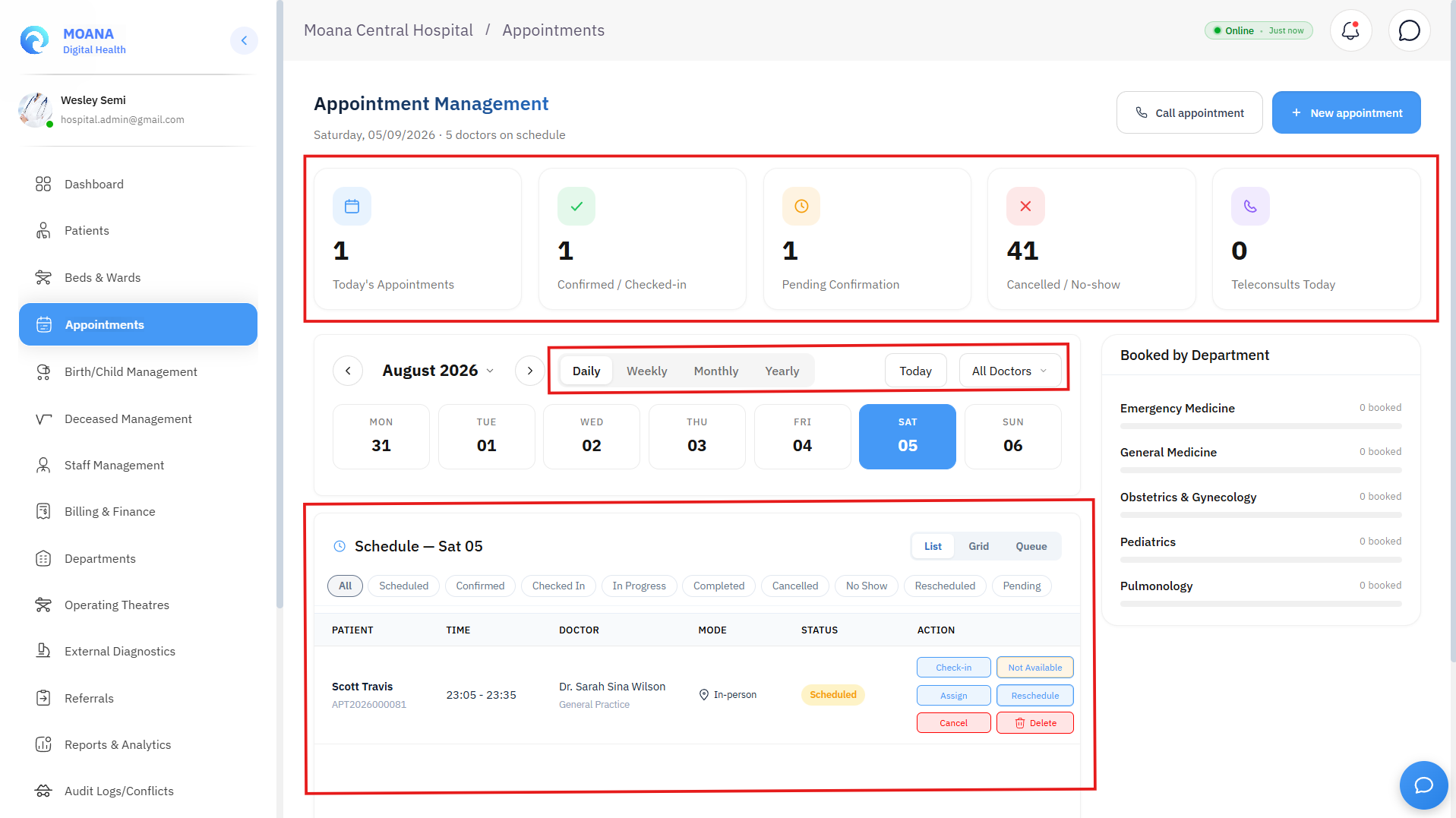
Executive Scheduling KPIs & Metrics
At the top of the Central Scheduling screen, real-time counters give reception supervisors and practice managers instantaneous visibility into daily clinic operations:
| Metric Card | Description | Clinical / Administrative Significance |
|---|---|---|
| Today's Bookings | Total appointments scheduled for the current operating day. | Establishes daily target capacity and staffing requirements. |
| Total Appointments | Aggregate number of bookings registered across the selected date range. | Tracks overall facility throughput and resource utilization. |
| Scheduled & Confirmed | Patients with booked slots awaiting arrival or confirmed via SMS/Phone reminder. | Indicates expected upcoming patient arrivals. |
| Checked In | Patients who have physically arrived at the facility and are waiting in the reception lounge. | Triggers nurse triage alerts and adds the patient to the active consultation queue. |
| In Progress | Consultations currently underway inside physician consultation rooms. | Tracks real-time doctor room occupancy and active consultation durations. |
| Cancelled / No Show | Bookings cancelled by patients or flagged as unattended. | Frees up provider capacity and prompts automated rebooking workflows. |
| Teleconsults Today | Virtual/remote consultations scheduled with telemedicine video links. | Alerts clinicians to open digital consultation rooms. |
The Three Central Scheduling Display Modes
MOANA provides three specialized viewing modes tailored for different front-desk and clinical coordination workflows:
graph TD
    A[Central Scheduling Module] --> B[1. Comprehensive List View]
    A --> C[2. Provider × Time Grid Matrix]
    A --> D[3. Live Outpatient Queue]

    B --> B1[Paginated multi-parameter search]
    B --> B2[Batch status updates & CSV export]

    C --> C1[Visual doctor timeline columns]
    C --> C2[Drag-and-Drop Slot Rescheduling]
    C --> C3[Doctor availability & room binding]

    D --> D1[Status-prioritized queue]
    D --> D2[Dynamic wait time calculation]
    D --> D3[One-click consultation call]
1. Comprehensive List View
The List View provides a robust, tabular directory of all appointments. It is ideal for receptionists performing multi-criteria searches, bulk status checks, or exporting appointment rosters.
List View Features:
- Granular Time Filters: Toggle between Day, Week, Month, and Year views, or choose a specific custom date via the calendar widget.
- Provider & Specialty Filtering: Filter appointments by attending physician, medical department (e.g., Cardiology, Pediatrics, General Medicine), or consultation type.
- Real-time Status Tags: Distinct, color-coded badges for
Scheduled,Confirmed,Checked In,In Progress,Completed,Cancelled,No Show, andRescheduled. - Quick Action Controls:
- Check In: Instant one-click check-in for arriving patients.
- Call Patient: Broadcasts a call chime to the waiting area display board.
- Reschedule: Launches the conflict-free slot picker modal.
- Cancel / No Show: Logs non-attendance with required audit rationale.
- View Details: Opens the comprehensive appointment summary drawer.
2. Provider × Time Grid Matrix (Interactive Timeline)
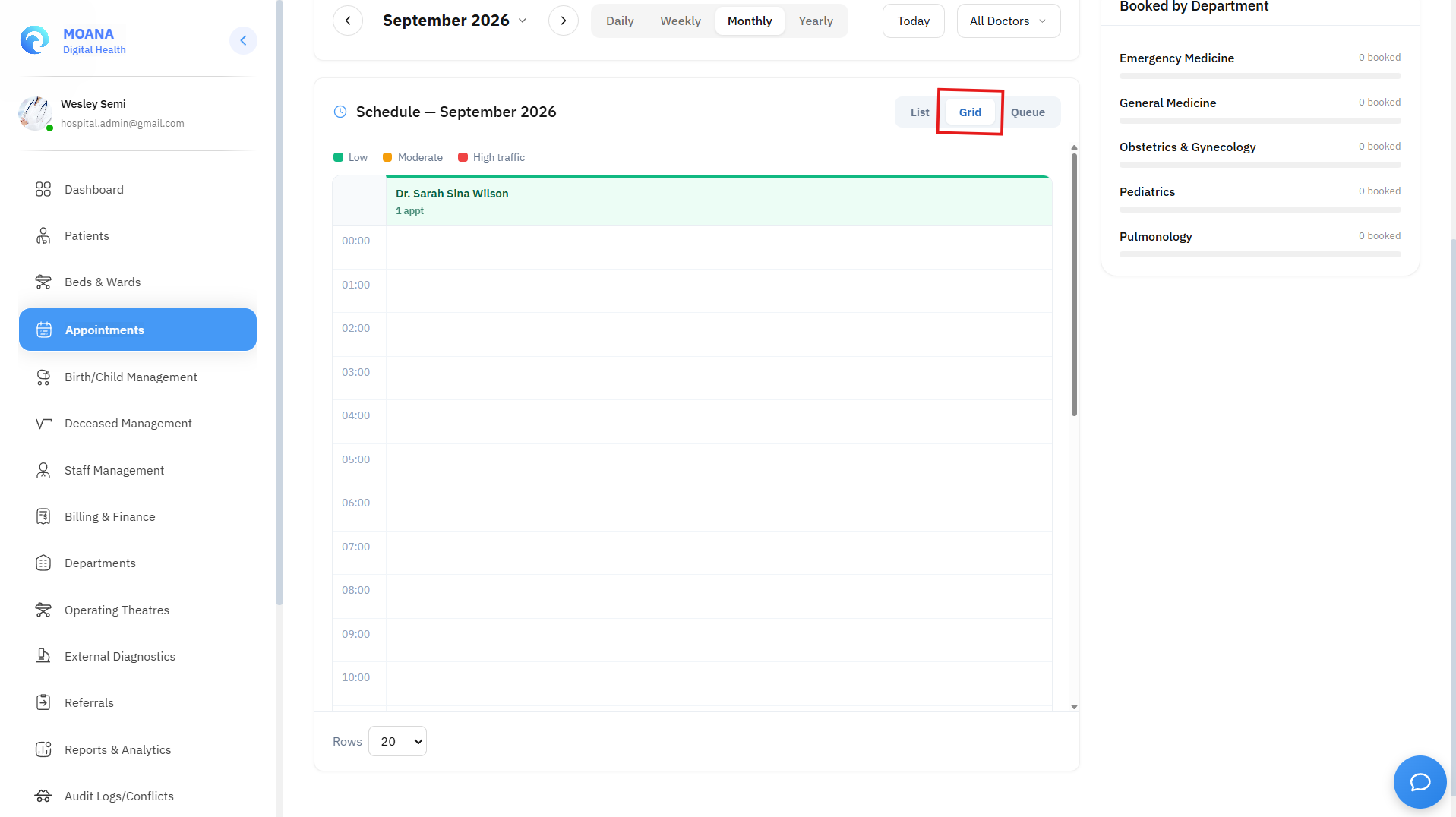
The Grid View renders a horizontal timeline matrix where each column represents an attending physician or consultation room, and each row corresponds to an hourly time slot (e.g., 08:00 to 18:00).
Key Capabilities of the Timeline Grid:
- Smooth Inertial Navigation: Smooth horizontal wheel scrolling allows rapid scanning across dozens of doctors without jumpy visual stutter.
- Drag-and-Drop Rescheduling:
- To reschedule an appointment to a different hour on the same day, simply click and drag the appointment card to the desired time row.
- MOANA automatically validates doctor availability, updates the scheduled time, logs the audit event, and refreshes the matrix in real time.
- Deep-Link to Provider Queue: Clicking any condensed appointment card immediately opens that specific physician's focused queue view.
3. Live Outpatient Queue View
The Queue View is a real-time clinical dispatch board designed for outpatient triage nurses and consulting physicians. It orders patients using a strict clinical priority hierarchy:
- Clinical Priority Order:
In Progress>Checked In>Scheduled
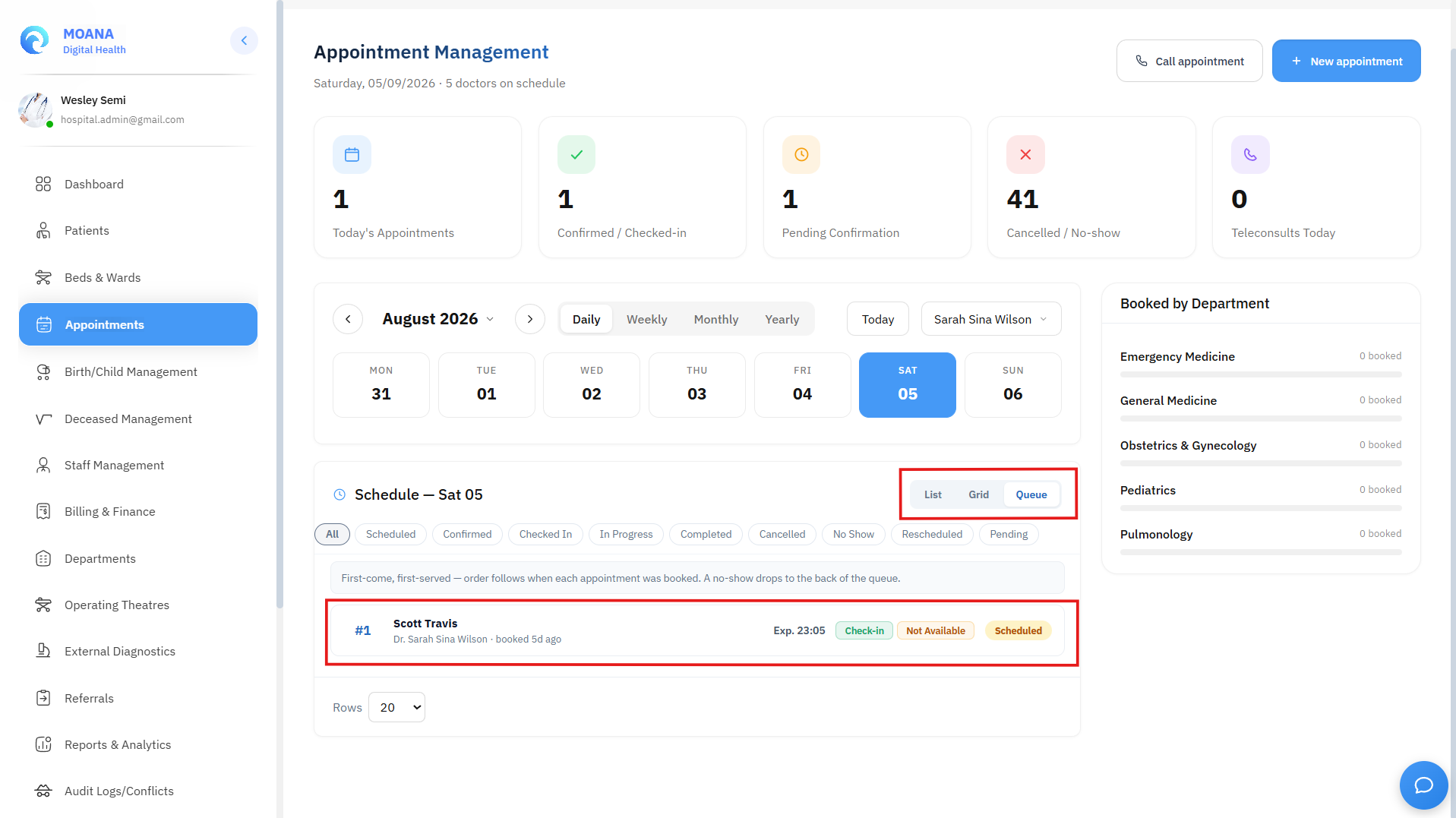
Dynamic Algorithmic Wait Time Calculation:
For every patient in the queue, MOANA calculates their estimated wait time based on the sum of durations of all preceding patients:
- If the patient ahead is In Progress, MOANA tracks elapsed time and calculates remaining duration:
Remaining Time = Math.max(0, Scheduled Duration - Elapsed Time) - Subsequent patients accumulate the remaining time plus full scheduled durations of all intervening patients, providing an accurate, live waiting estimate in minutes or hours.
Step-by-Step Scheduling Workflows
Workflow 1: Booking a New Appointment
sequenceDiagram
    autonumber
    actor Receptionist
    participant MOANA as Central Scheduling
    participant MPI as Patient Directory (MPI)
    participant Doctor as Doctor Schedule Engine
    participant Notify as Notification Service

    Receptionist->>MOANA: Click "+ Book Appointment"
    MOANA->>MPI: Search patient by Name, Phone, or Health ID
    MPI-->>MOANA: Return Verified Patient Record
    Receptionist->>Doctor: Select Department, Doctor & Target Date
    Doctor-->>MOANA: Display Available Time Slots (Color-Coded)
    Receptionist->>MOANA: Select Slot, Consultation Type & Priority
    Receptionist->>MOANA: Confirm Booking
    MOANA->>Notify: Dispatch SMS & Email Confirmation with QR Code
    MOANA-->>Receptionist: Booking Confirmed (Slot Reserved)
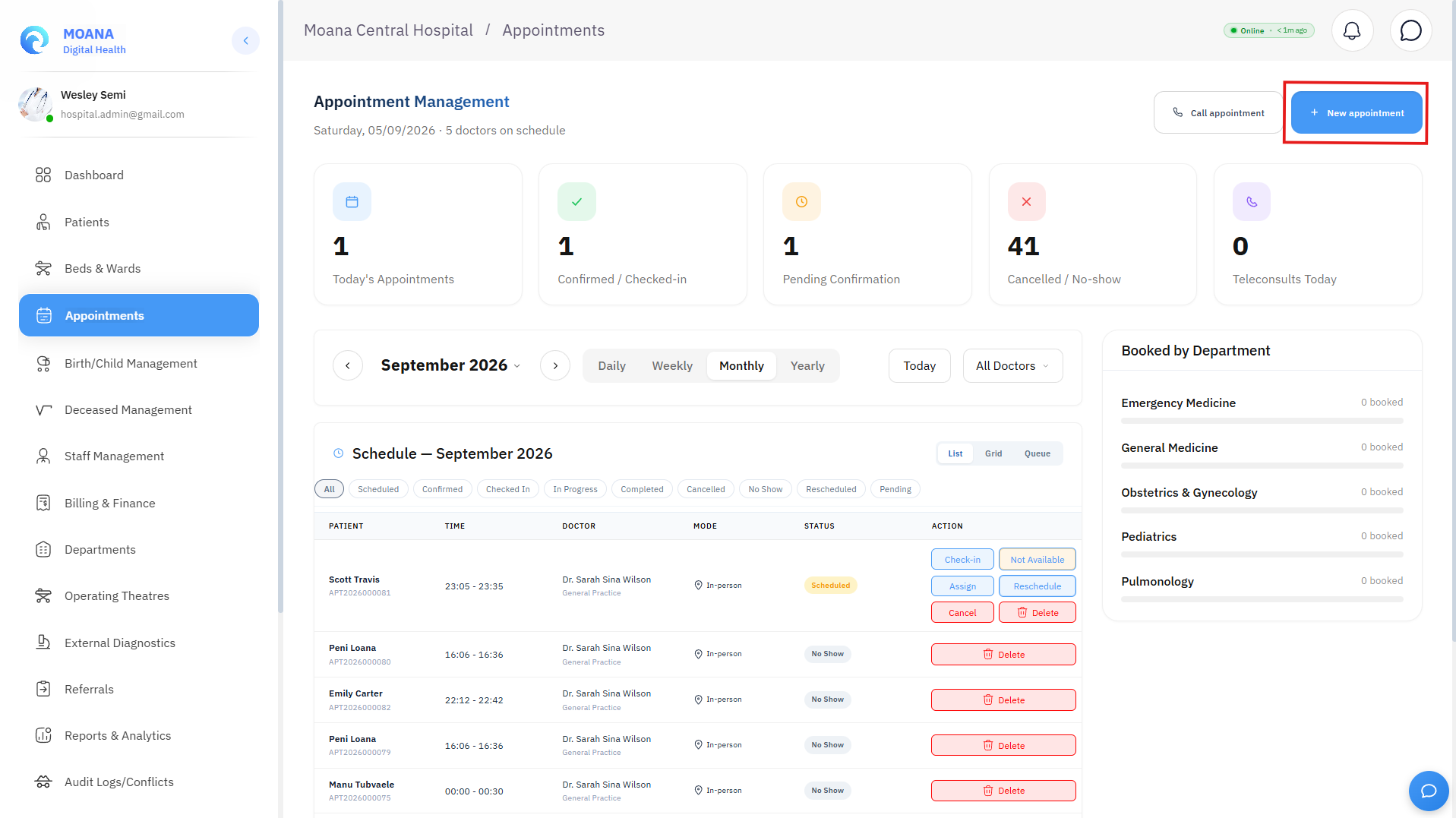
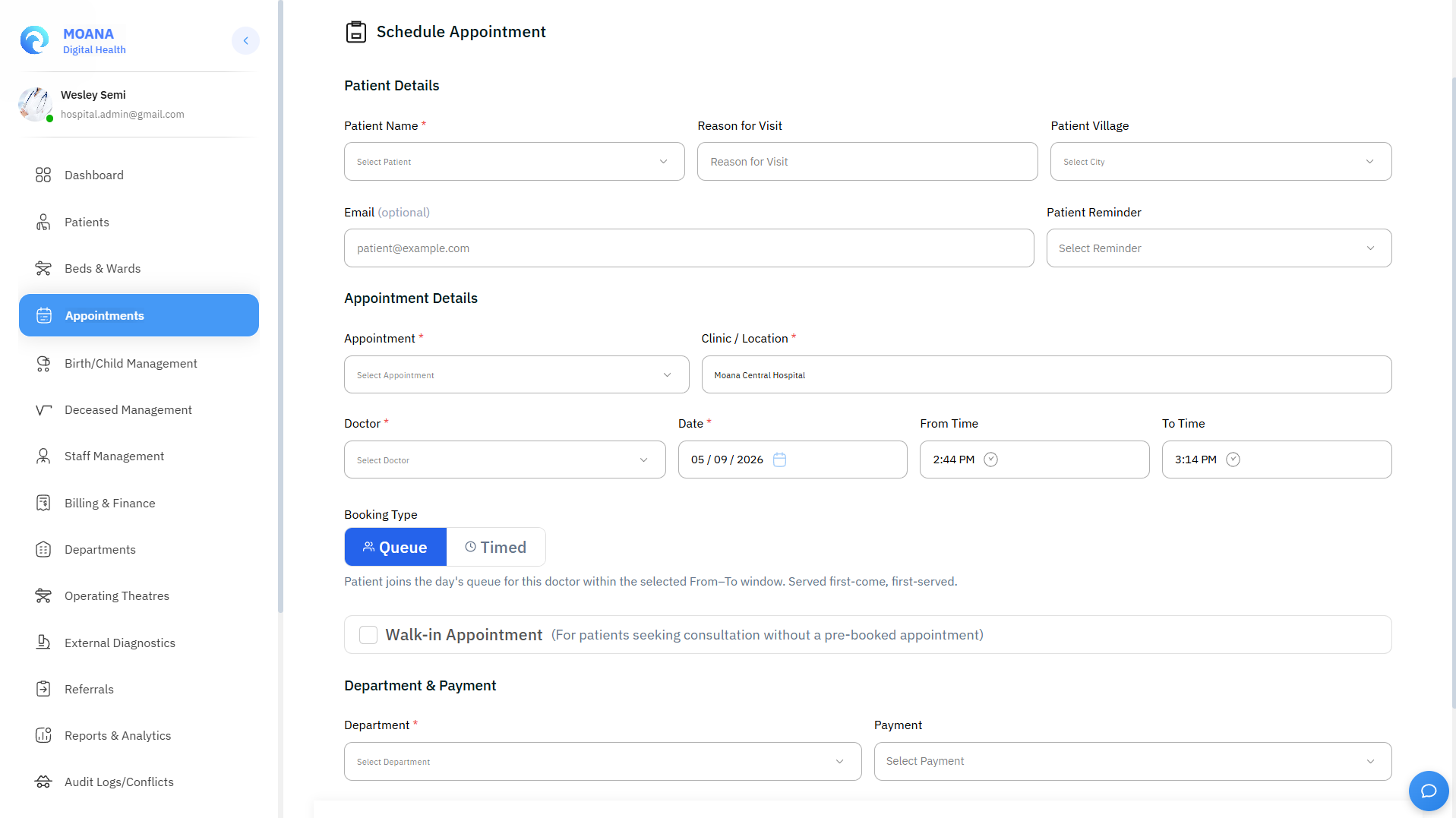
- Click the "+ Book Appointment" button on the top-right toolbar.
- Select Patient:
- Search by Patient Name, Phone Number, National ID, or MOANA Health ID.
- For new patients, click "Quick Register" to create a baseline demographic file instantly.
- Select Provider & Service:
- Choose the Department and Consulting Doctor.
- Choose the Consultation Type: Initial Consultation, Follow-up, Routine Review, Telehealth Video Call, or Specialist Procedure.
- Choose Slot: Select an open time slot from the dynamically generated availability grid.
- Set Priority & Chief Complaint:
- Specify priority: Normal, Urgent, or VIP / Corporate.
- Enter chief complaints or clinical visit notes for the doctor.
- Notification Options: Toggle automatic SMS and email reminders to ensure patient compliance.
- Click "Confirm & Book" to finalize the appointment.
Workflow 2: Rescheduling an Appointment
When a patient requests a time change or a doctor's schedule shifts:
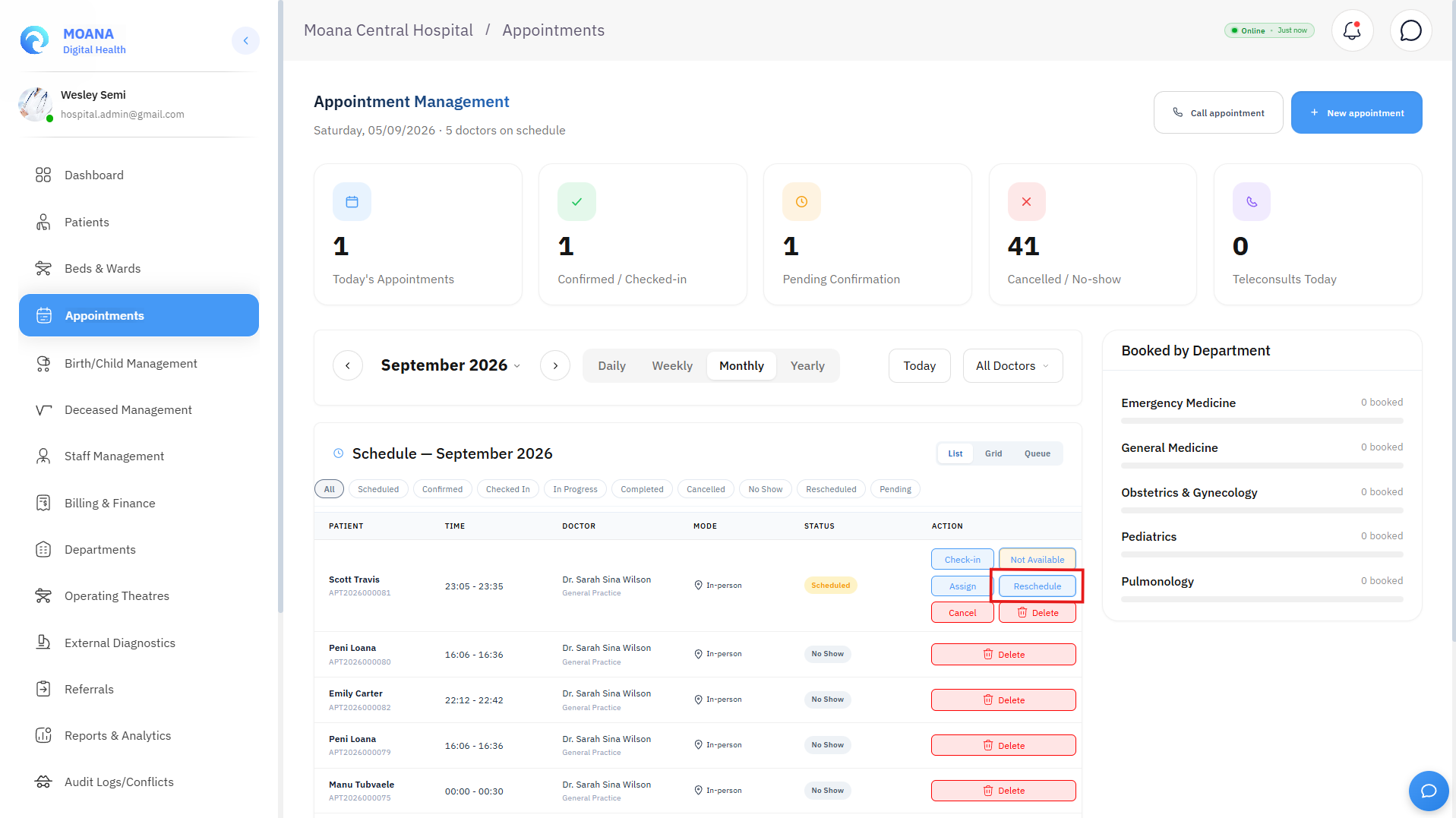
- Locate the appointment in List View or Grid View.
- Click the "Reschedule" action button (or drag the card to a new time in Grid View).
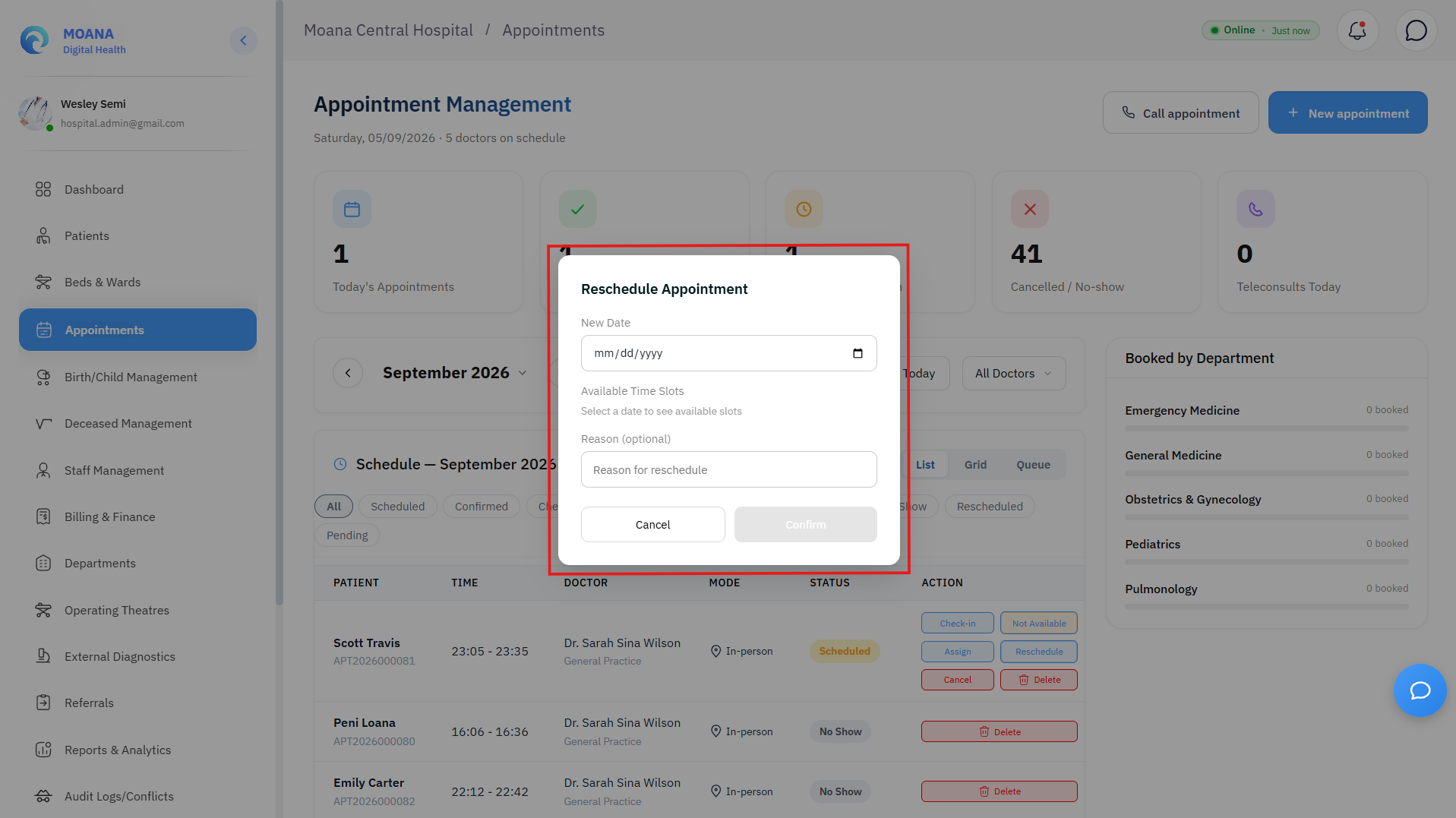
- The Reschedule Appointment Modal opens, showing:
- Current appointment details and provider name.
- Calendar date picker and available time slots for the chosen provider.
- Reason for Rescheduling dropdown (Patient Request, Doctor Unavailable, Emergency Case Priority, Facility Maintenance).
- Select the new slot and click "Confirm Reschedule".
- The system immediately frees the original slot, books the new slot, logs the audit trail, and sends an updated SMS confirmation to the patient.
Workflow 3: Patient Arrival & Check-In
When a patient arrives at the clinic:
- The receptionist identifies the patient via Name search, Phone lookup, or by scanning their Digital Health ID QR Code.
- Click "Check In" on the appointment card.
- Automated System Actions:
- Appointment status updates from
Scheduled/ConfirmedtoChecked In. - An Outpatient Encounter (OPD) record is automatically instantiated.
- The patient's record is routed to the Nurse Triage Queue for baseline vitals recording.
- The patient appears in the doctor's Live Queue with a live waiting time counter.
- Appointment status updates from
:::tip Fast-Track QR Check-In If your facility has barcode/QR scanners at reception, scanning the patient's Digital Health ID card or mobile confirmation SMS performs instant one-second check-in without manual typing. :::
Workflow 4: Handling Cancellations & No-Shows
To keep clinic calendars accurate and release blocked time slots:
- Cancellation:
- Click "Cancel" on the appointment card.
- Select the cancellation reason and indicate whether the slot should be offered to the walk-in waitlist.
- The slot becomes immediately available for other patients.
- Marking No-Show:
- If a patient fails to arrive within 30 minutes past their scheduled time, click "Mark No Show".
- The status updates to
No Show, and the patient's record logs the missed appointment in their clinical dossier. - Practice managers can review chronic no-show reports in the Reporting & Analytics module.
Role-Based Access Control (RBAC) in Scheduling
| Action / Capability | Receptionist / Clerk | Triage Nurse | Consulting Doctor | Medical Administrator |
|---|---|---|---|---|
| View Appointments List & Grid | ✅ | ✅ | ✅ (Own + Dept) | ✅ (All) |
| Book & Reschedule Appointments | ✅ | ✅ | ✅ | ✅ |
| Perform Patient Check-In | ✅ | ✅ | ❌ | ✅ |
| Start / Finish Consultations | ❌ | ❌ | ✅ | ✅ |
| Reassign Attending Physician | ⚠️ (Requires Approval) | ❌ | ❌ | ✅ |
| Configure Doctor Shifts & Slot Templates | ❌ | ❌ | ❌ | ✅ |
| Delete / Override Booking Restrictions | ❌ | ❌ | ❌ | ✅ |
Offline Resilience for Central Scheduling
When operating during internet disruptions or local area network outages:
- Cached Schedules: The desktop client maintains a local cache of all bookings and provider rosters for the current week.
- Offline Walk-In & Check-In: Arriving patients can still be checked in and walk-ins can be queued locally.
- Automatic Cloud Sync: When connectivity is restored, all locally recorded check-ins, new bookings, and status transitions sync upstream with automatic conflict detection.